PracBill pushes authorised invoices and gateway payments to Xero every night, and pulls the payments you reconcile in Xero back onto the invoices. This guide is for the person who owns the books: read all of it before you connect.
¶ How the integration works
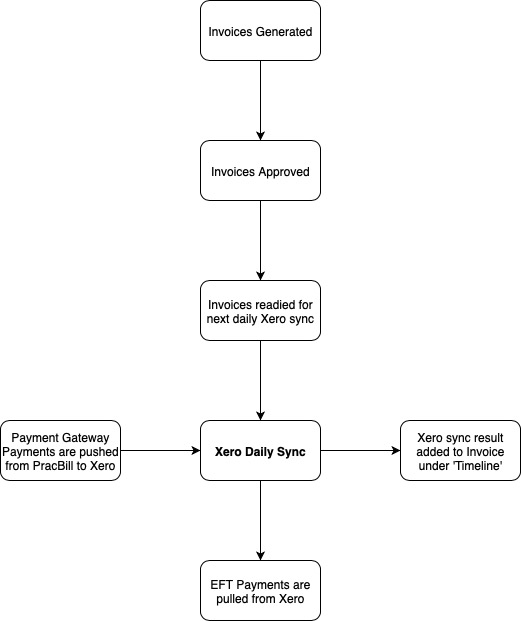
| What | Direction | When |
|---|---|---|
| Invoices with status Authorised | PracBill to Xero | 9:00 PM AEST daily |
| Payments taken through a payment gateway whose payment option uses a Xero clearing account | PracBill to Xero | 9:00 PM AEST daily |
| Payments reconciled in Xero against a bank account that a PracBill payment option uses, plus customer overpayments | Xero to PracBill | 6:00 AM AEST daily |
| Contacts | PracBill to Xero | As each customer is first invoiced. The Xero account number is the PracBill customer ID |
| Chart of accounts | Xero to PracBill | Once, when you connect. Re-sync by hand after that |
Invoices with status Pending (bill run not yet approved) or Draft never sync. The result of each sync is written to the invoice's Timeline and to Accounting then Xero Logs.
Xero rejects changes to an invoice that already has a payment or credit applied in Xero. PracBill cannot work around this. Turn on Lock Due Invoices (below) before you go live.
¶ Before you connect: self-assessment
Work through this list in order. Each item links to the section that covers it.
- Read this page, including the invoice and payment flow above.
- Create a Bank-type clearing account in Xero for each payment gateway: see Payment gateway setup for Xero.
- Connect Xero and set Send Invoices From to the first day of next month.
- Set the default GL codes in the Accounting card.
- Add GL codes to every service type (recurring and usage).
- Add GL codes to every product.
- Switch credits to credit notes.
- Turn on Lock Due Invoices.
¶ Connect PracBill to Xero
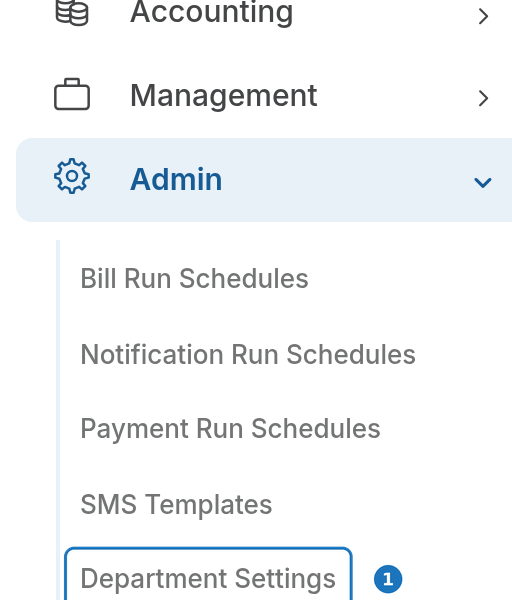
- In the sidebar open Admin, then click Department Settings, then Edit.
- In the Xero card click Connect to Xero and sign in to Xero with a user who can authorise the app. The card shows the organisation name once connected.
- Set Send Invoices From. Only invoices dated on or after this day are pushed; use the first day of the next month so you are not pushing invoices you have already entered in Xero.
- Optionally pick billing groups under Do Not Push These Billing Groups (for example Internal) and click Submit.
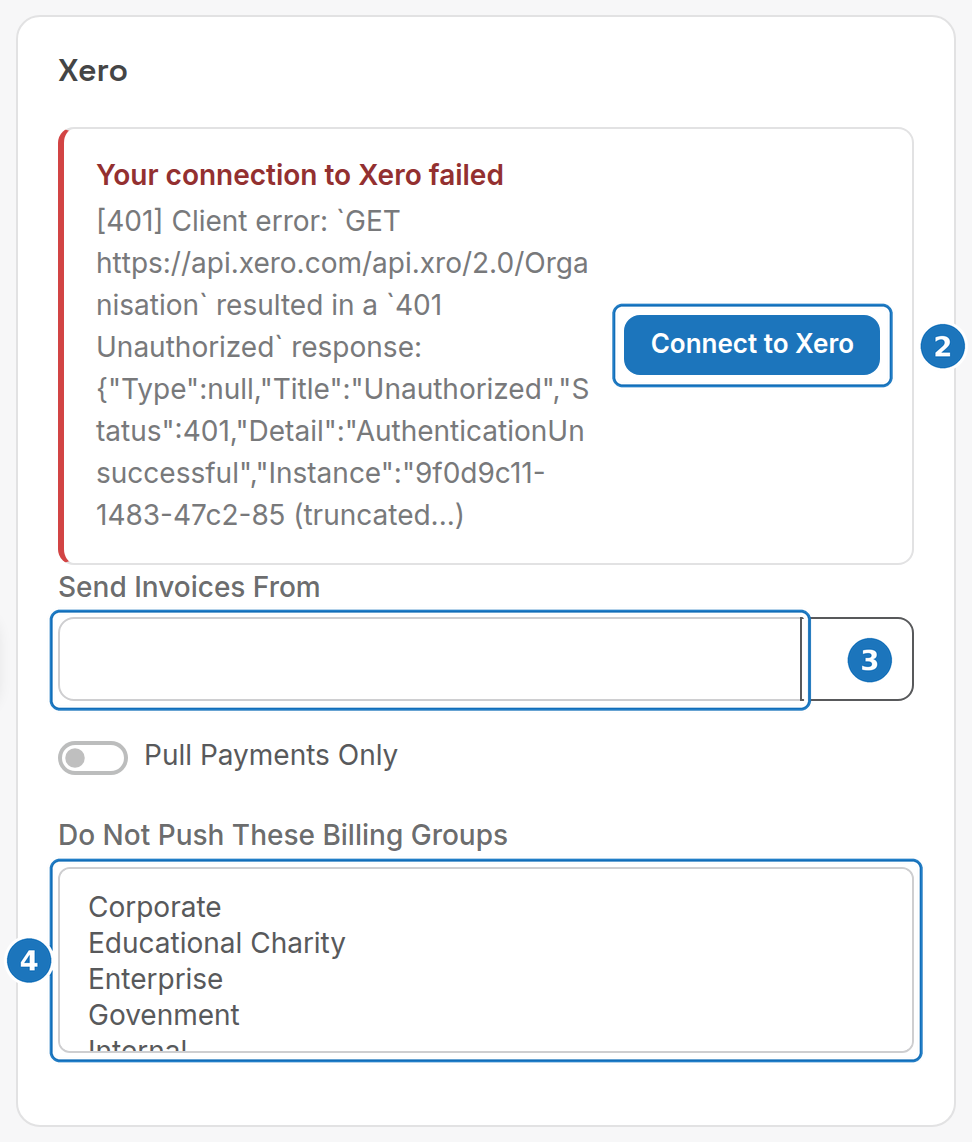
| Setting | What it does |
|---|---|
| Send Invoices From | Earliest invoice date PracBill will push to Xero. |
| Pull Payments Only | Do not push invoices or payments; only pull payments reconciled in Xero. |
| Do Not Push These Billing Groups | Customers in these billing groups are never pushed to Xero. |
The connection belongs to the Xero user who authorised it. If that user is removed from Xero, the card shows Your connection to Xero failed; click Connect to Xero again and your mappings carry on from where they stopped.
¶ Set the default GL codes
The Accounting card in Department Settings holds the accounts used for GST, shipping, POS takings and anything without its own account. Invoices can fail to sync if these are blank.
- Turn on Accounting Enabled.
- Pick an account for each field, starting with Tax Received Account.
- Pick a Default Payment Account, then click Submit.
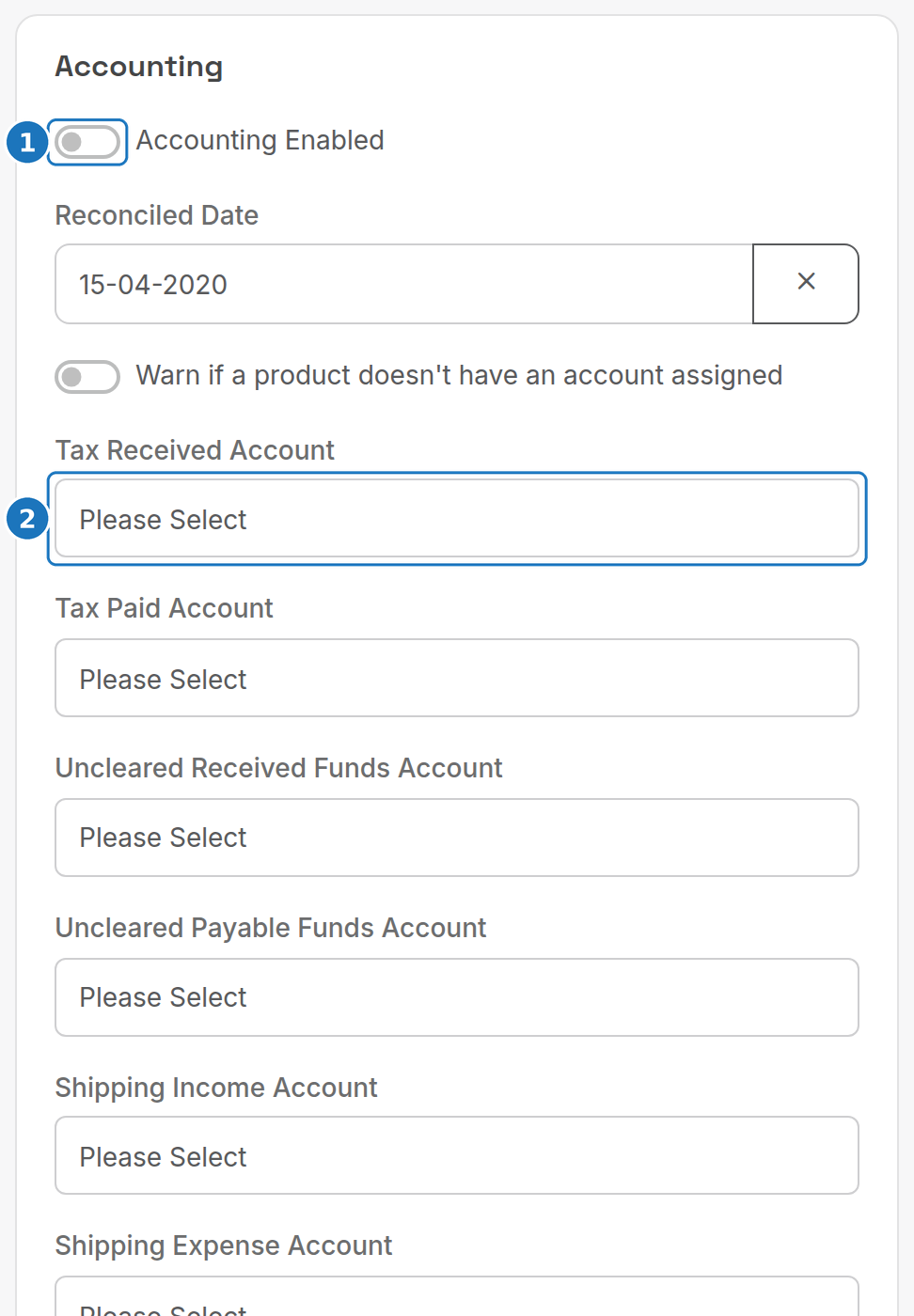
| Field | Used for |
|---|---|
| Reconciled Date | Closes the books: nothing before this date can be edited or created. See Set up your department. |
| Warn if a product doesn't have an account assigned | Shows a warning when a product with no GL code is sold. |
| Tax Received Account / Tax Paid Account | GST collected on sales and GST paid on purchases. |
| Uncleared Received Funds Account / Uncleared Payable Funds Account | Money received or paid that has not yet been allocated. |
| Shipping Income Account / Shipping Expense Account | Shipping charged on invoices and shipping you pay. |
| POS Cash Account, POS Eftpos/Credit Card Account, POS Till Discrepancies Account | Point of sale takings and till variances. |
| Misc Income Account / Misc Expense Account | Miscellaneous charges and purchases with no product account. |
| Service Bundle Account | Income from service bundles. |
| Default Payment Account | The account a payment is posted to when its payment option has none. |
¶ Sync the chart of accounts
PracBill imports your Xero chart of accounts once, when you connect. If you add or remove GL codes in Xero afterwards, re-sync it.
- In the sidebar open Accounting, then click Xero Logs.
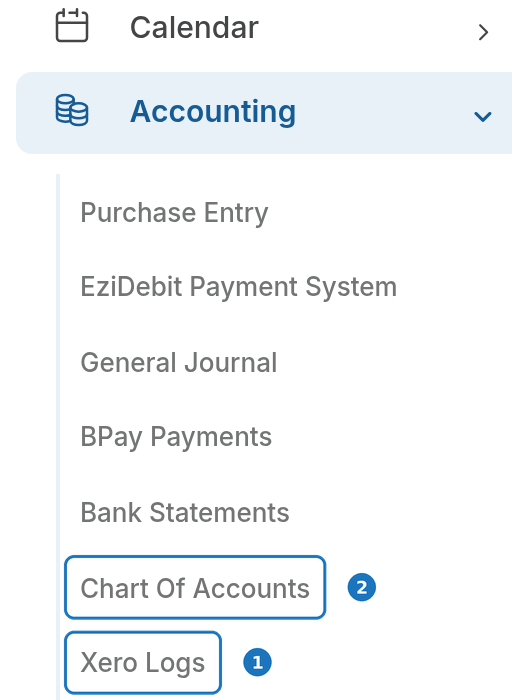
- Click Sync Chart of Accounts.

- Open Accounting then Chart Of Accounts to check the result. Clearing marks the accounts flagged as payment gateway clearing accounts.
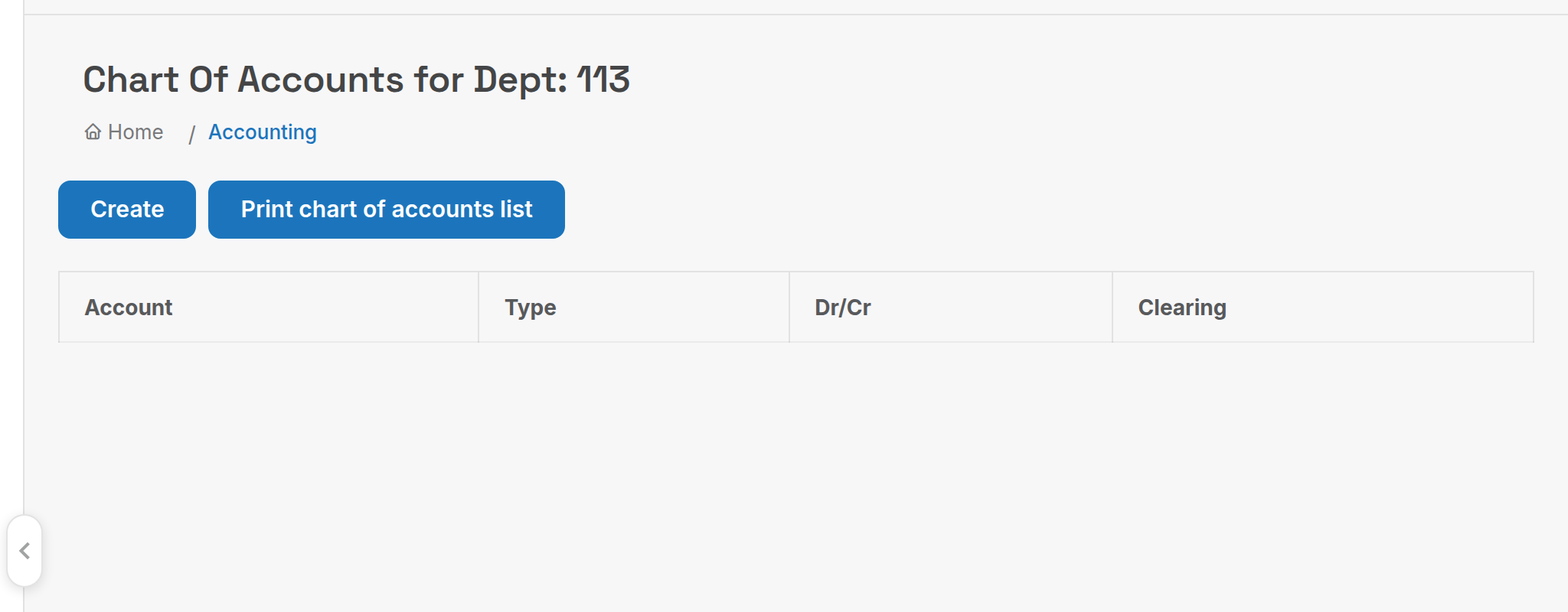
After a re-sync, check every service type, product and Accounting card field: a GL code removed in Xero leaves the field blank and the invoice will not sync.
¶ GL codes for service types and usage
Each service type needs a GL code for its recurring fee and a second one for the usage (calls, data) billed under it, so the two income streams post to separate accounts.
- Open Services then Service Types, and click the service type.
- Under General Info pick the Accouting Account (recurring income).
- Pick the Usage Accounting Account (usage income), then click Save.
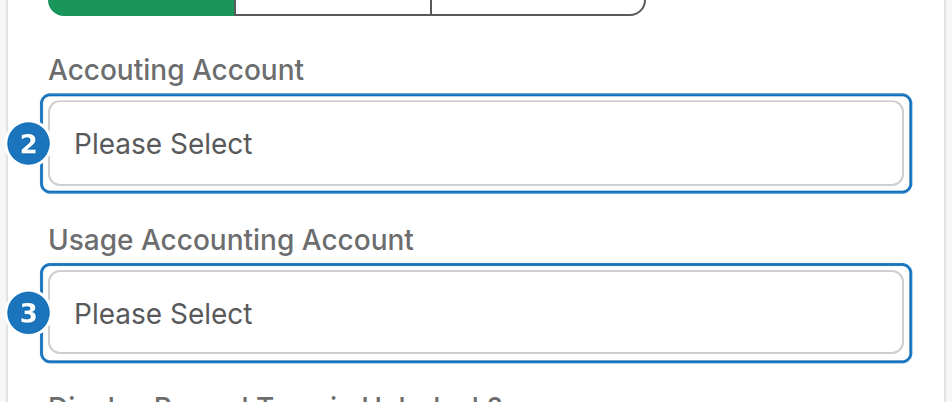
Repeat for every active service type. See Service types.
¶ GL codes for products
Products are one-off charges such as activation fees, port fees and hardware.
- Open Stock then Products, and click the product.
- Under Accounting Options pick Account Income (when I sell item).
- Pick Account Expense (when I buy item), then click Save.
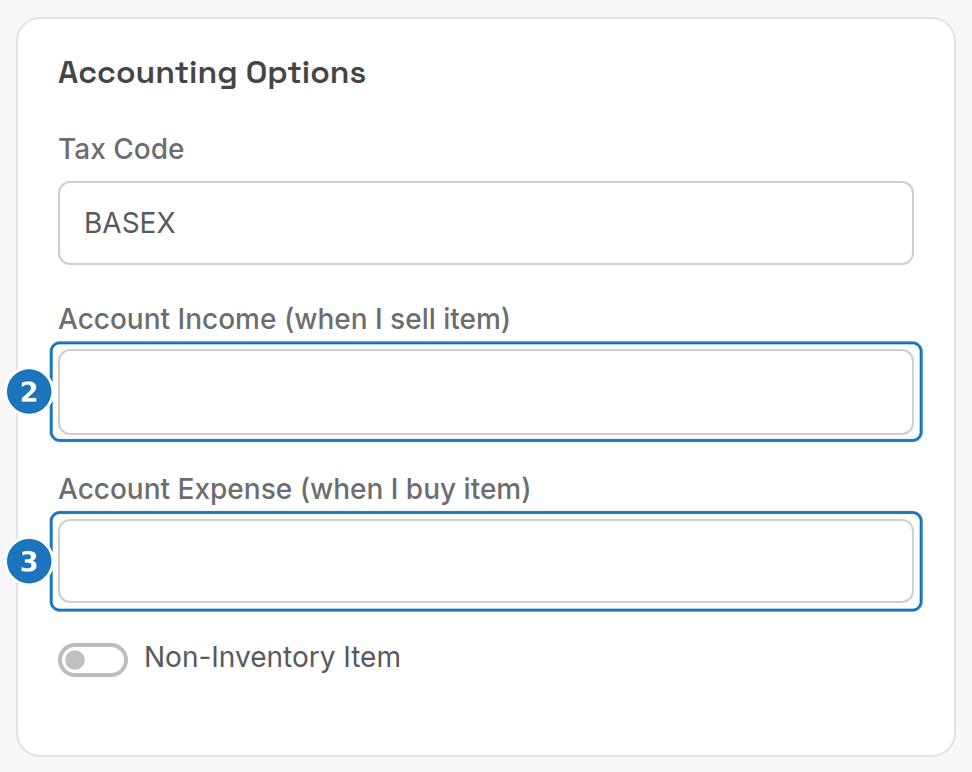
See Stock, products and suppliers.
¶ Lock due invoices
Automatic payments usually run on the due date, and Xero will not accept an edited invoice once a payment is applied to it. Locking invoices on their due date stops those edits.
- Open Admin, Department Settings, then Edit.
- In the Billing Behaviour card turn on Lock Due Invoices, then click Submit.
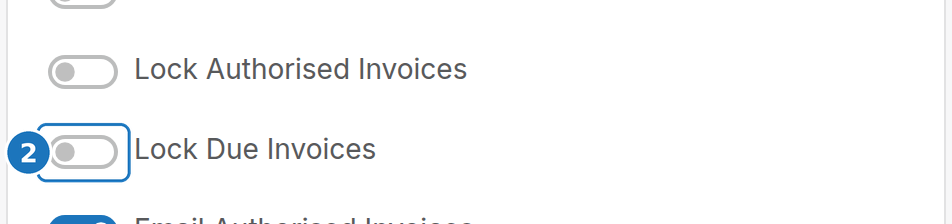
Lock Authorised Invoices goes further and locks invoices as soon as the bill run is approved.
¶ Credits in a Xero department
Xero only accepts credits as credit notes. Turn off the simple credit payment type and use credit notes instead.
- Open Admin, Department Settings, then Edit.
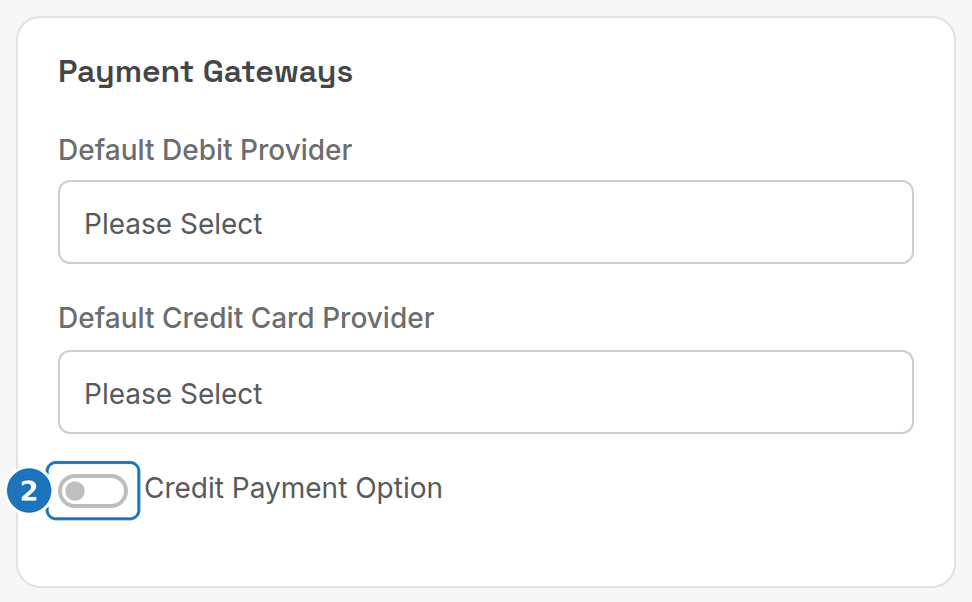
- In the Payment Gateways card turn off Credit Payment Option.
- In the Billing Behaviour card turn on Credit Notes Enabled, then click Submit.
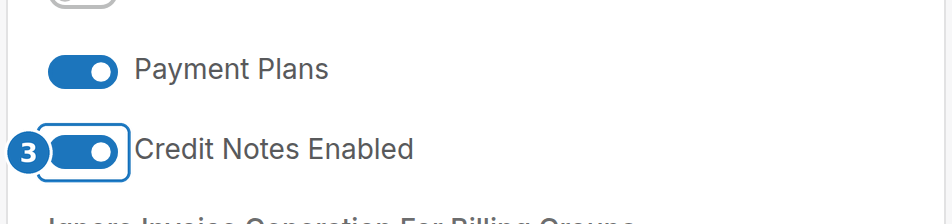
From now on apply credits only through credit notes. An invoice with a negative total is never pushed; raise a credit note instead.
¶ Invoice validation and failure notices
Before each push PracBill checks every authorised invoice. An invoice is skipped, and the reason logged, when it:
| Check | Fix |
|---|---|
| has no line items (no products, services or usage) | add the items or void the invoice |
| has a negative total | create a credit note instead |
| belongs to a customer not yet synced to Xero | open the customer and sync them, then wait for the next push |
| belongs to a contact archived in Xero | restore the contact in Xero (PracBill cannot un-archive via the API) |
Skipped invoices appear under Accounting, Xero Logs as type Info with a description starting "Invoice skipped for Xero push". Each day that any invoice fails, the department's invoice email address receives one summary email listing the failed invoices, the reason and a link to the logs. The invoice is retried at the next 9 PM push once fixed. Notifications need Xero connected, Accounting Enabled on and a From Email set in the Company & Invoicing card.
Other contact errors you may see in the log:
| Log message | Meaning |
|---|---|
| The Account Number already exists | The customer ID exists on a different Xero contact. PracBill fetches that contact's ID and re-links it; no action needed unless the contact is archived. |
| An existing contact could not be found using the specified contact details | The contact was deleted in Xero. PracBill resets the link and re-syncs the invoice. |
¶ Sync by hand
You do not have to wait for the nightly run.
- Open Accounting, then Xero Logs.
- Click Push Invoices to send every authorised, unpushed invoice now.
- Click Pull Payments to fetch payments reconciled in Xero now.
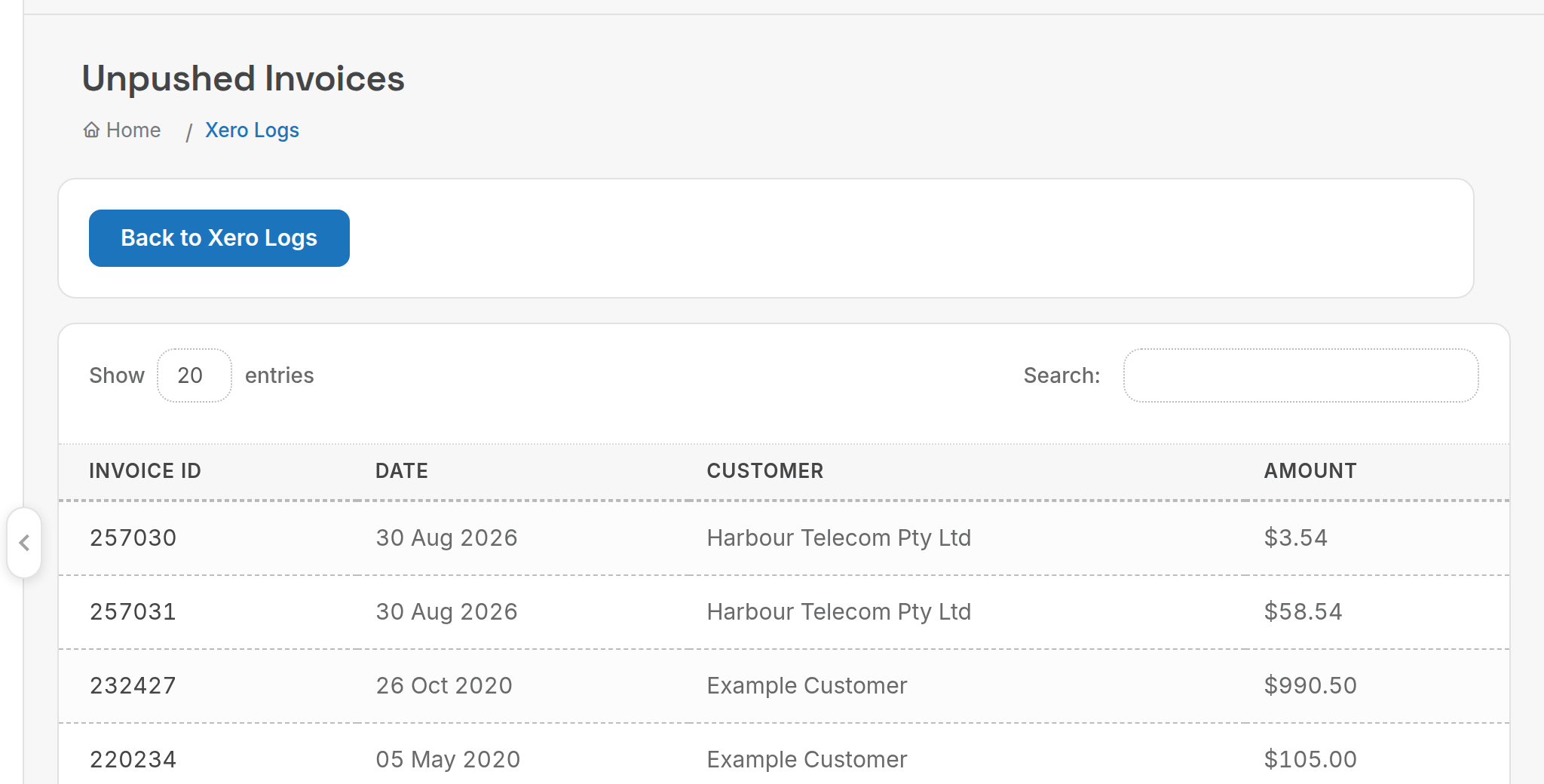
Unpushed Invoices lists the authorised invoices still waiting to go to Xero; Overpayments lists overpayments pulled from Xero and whether each has been processed.
For a payment-by-payment comparison, run the Xero - Payments Information report under Management, Reports, Accounting: see Payment and credit reports.
¶ Export to Xero without the integration
If you only want files to import into Xero yourself, use the export instead.
- Open General, then Export/Import, and in the Export Xero card click Contacts, Inventory or Invoices. Invoices asks for a date range and whether amounts are tax inclusive.
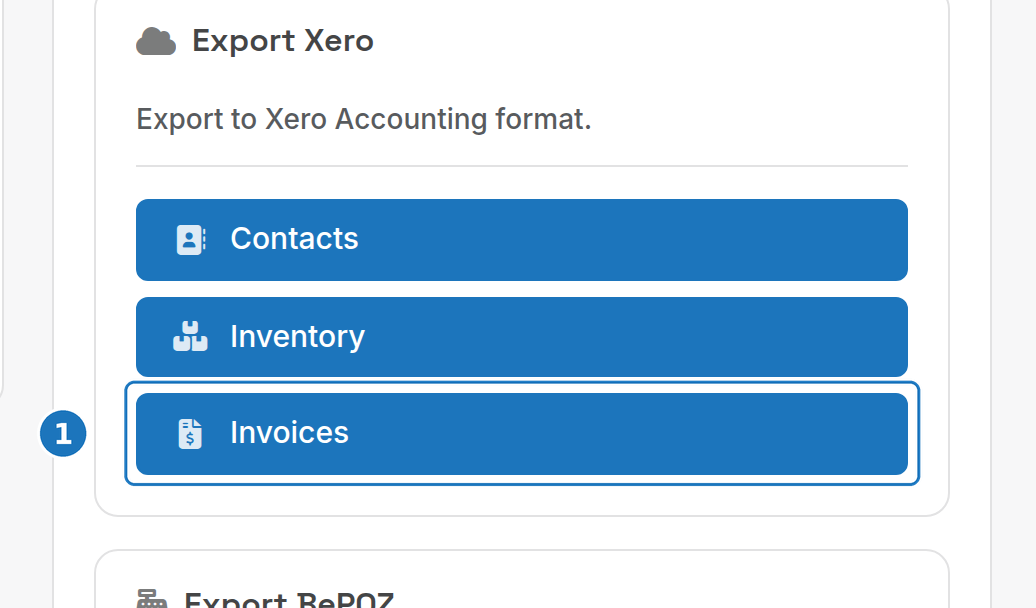
See Import and export for the other formats.
If a customer's invoices go to the wrong Xero contact, see Reassign a customer's Xero contact.