PracBill has three ways to credit a customer. Pick the one that matches how much control you need; the credit note is the formal option with an approval step.
| Method | Best for | How it works |
|---|---|---|
| Credit payment type | Small teams, credits on the fly | Record a payment of type Credit against the invoice. No approval. See Take a payment. |
| Negative misc charge | Tracking which product was credited | Add a miscellaneous charge with a negative amount on the customer or a service. It appears on the next invoice. |
| Credit note | Accounting-style credits, disputes, approval workflow | Raise a credit note with line items. Once approved it is applied to the next invoice. |
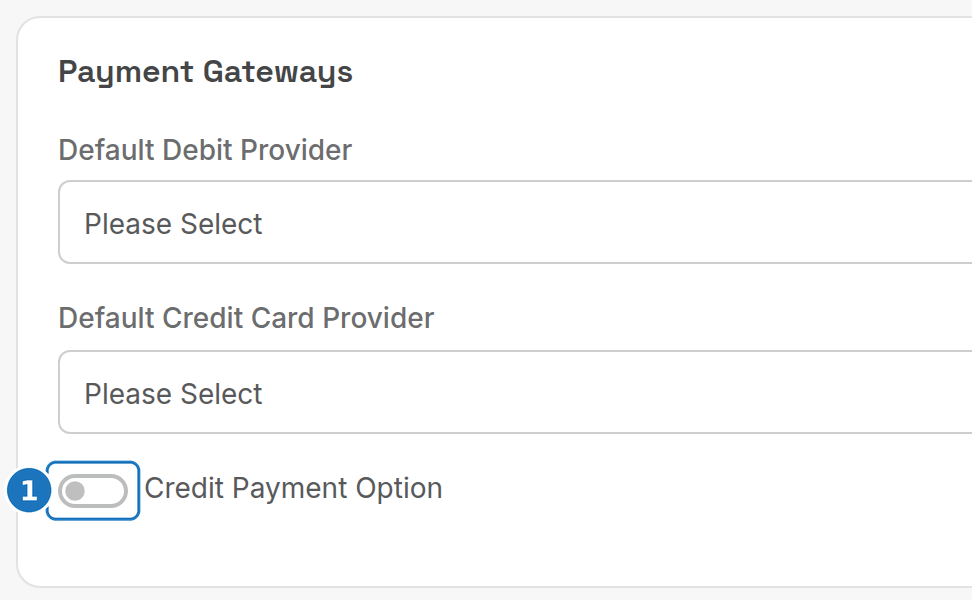
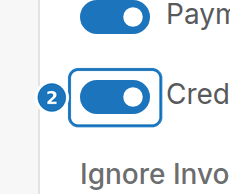
Departments integrated with Xero must use credit notes only. In Admin → Department Settings turn off Credit Payment Option and turn on Credit Notes Enabled. Xero rejects credits applied the other ways.
¶ Raise a credit note
- On the customer page scroll to Credit Notes and click Create Credit Note. (Customers → Credit Notes → Create does the same with a customer search.)

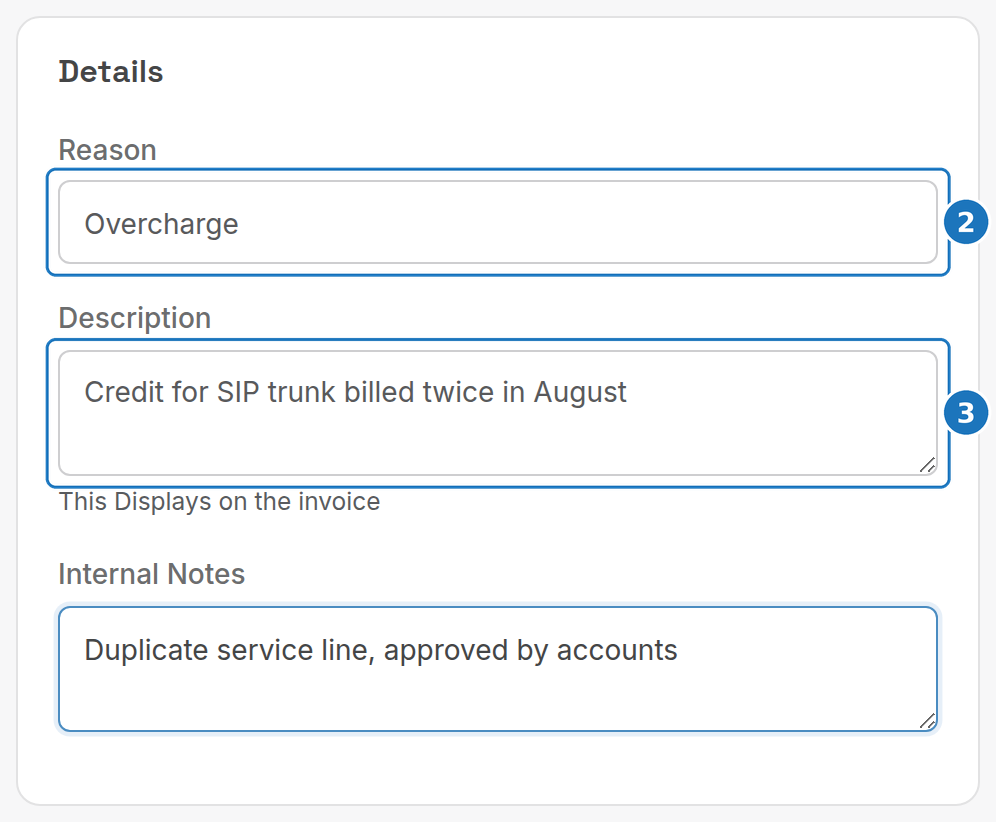
- Choose the Reason (from the Credit Notes Reason lookup table).
- Enter a Description. It prints on the invoice. Internal Notes do not.
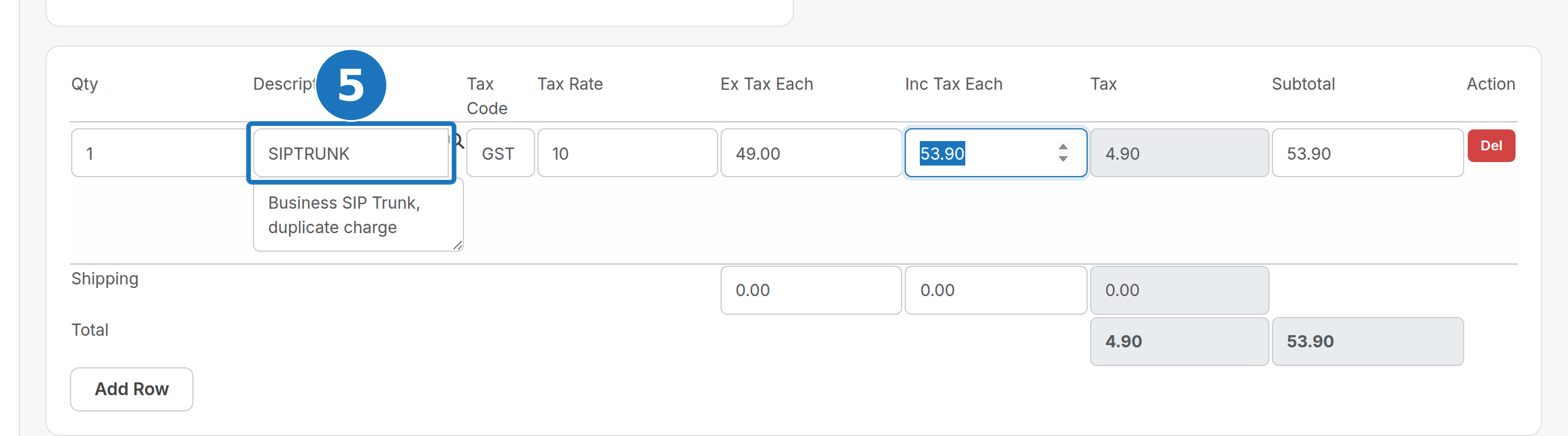
- Click Add Row in the products table.
- Enter the product code (or search for it), a description, the tax code and the Ex Tax Each amount. Tax and totals fill in.
- Click Save.
¶ Approve a credit note
- Open the credit note and click Approve. The Details card shows Approved? and Approved By.
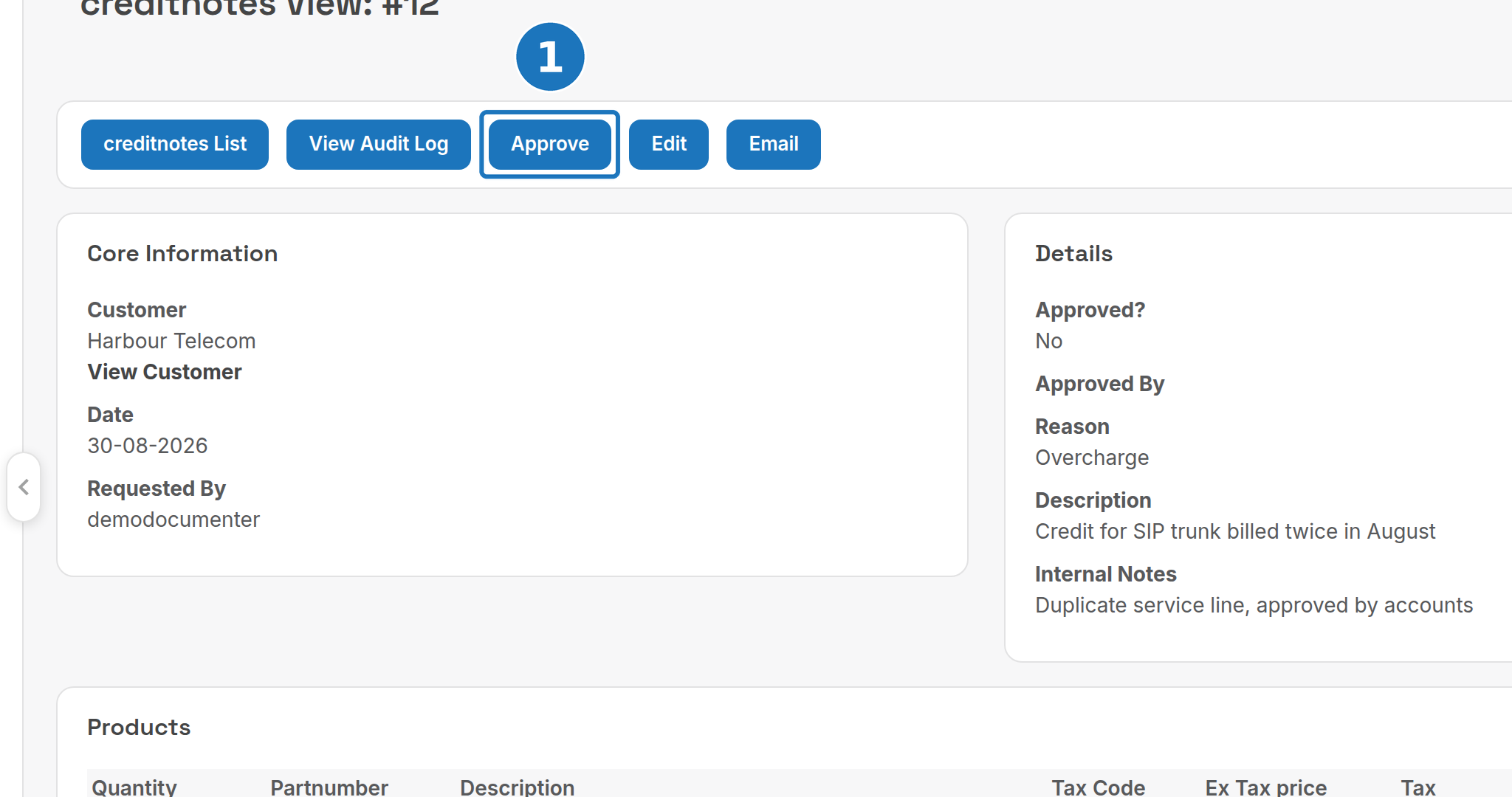
An approved credit note is applied to the customer's next invoice. Until then it can be edited by an admin; a credit note already assigned to an invoice cannot be edited at all.
| Task | Role level |
|---|---|
| Create or edit an unapproved credit note | Read/write |
| View any credit note | View |
| Approve a credit note | Admin |
| Edit an approved credit note | Admin |
| Edit a credit note assigned to an invoice | Not allowed |
¶ Track credit notes
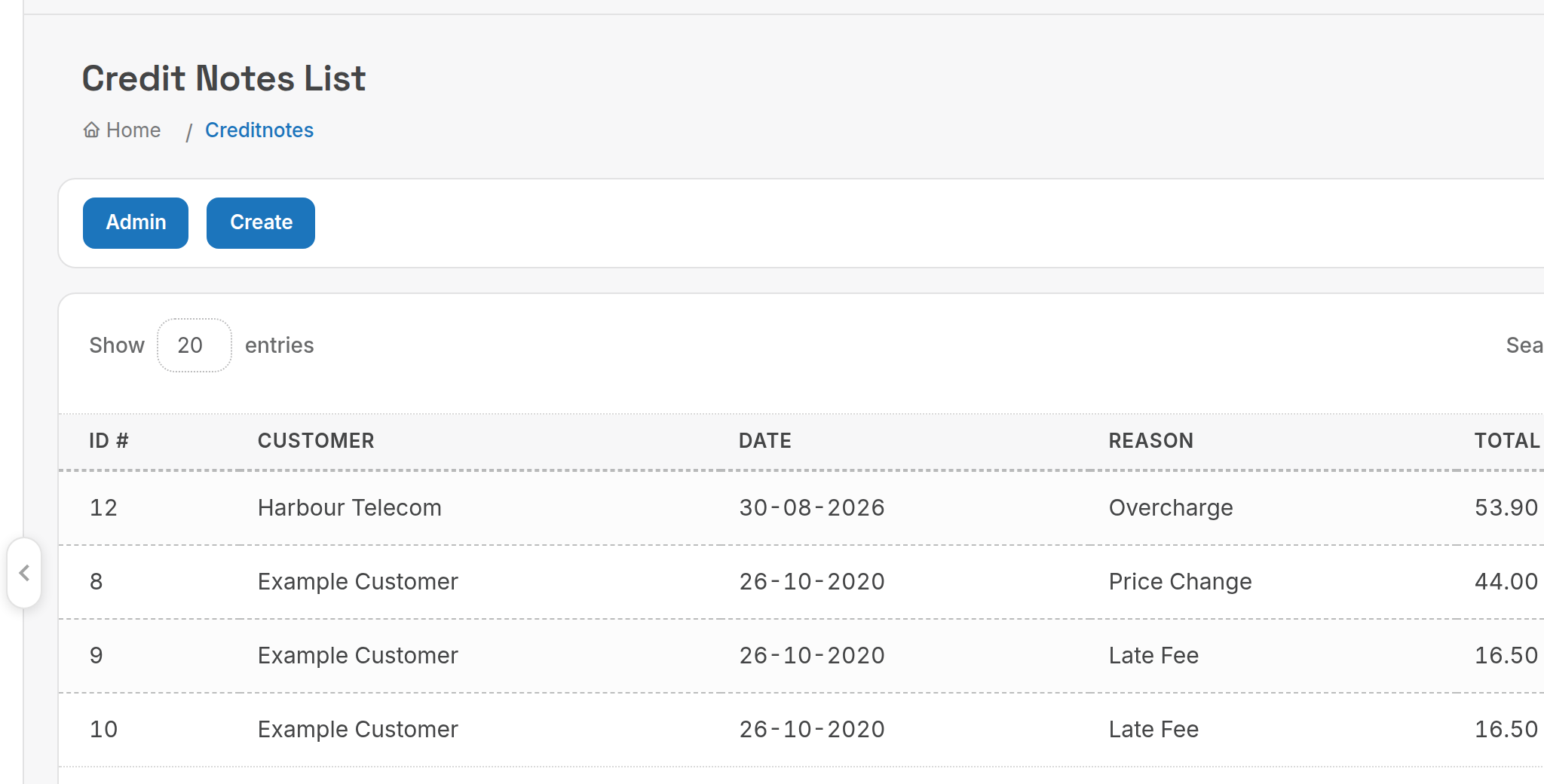
Customers → Credit Notes lists every credit note with its customer, date, reason, total and approval status.
Two reports under Management → Reports → Customers help the finance team:
| Report | Shows |
|---|---|
| Credit Notes (Pending Approval) | Credit notes waiting for management approval. |
| Credit Notes (Approved) | Approved credit notes, assigned to invoices or waiting to be. |
Related: Miscellaneous charges, Xero integration.