A payment option is one way a customer can pay you: a card or direct debit gateway, a bank transfer, cash, BPay. Each option you create under Admin, Payment Options can appear on invoices, in the back office and on your public website. This page is for the administrator who connects the gateways.
¶ Supported gateways
The Payment Gateway list on the create form offers these integrations:
| Gateway | Type |
|---|---|
| stripe | Credit card, PayTo bank payments and mandates. See below. |
| gocardless | Direct debit mandates. See below. |
| ezypay, ezidebit, integrapay, tillpayments, tillpayments_reseller, fatzebra, pinpayments, payway, SecurePay, eway, BPOINT, mpowered, paypal, Netregistry | Hosted card or direct debit gateways: credentials go in Admin Options. |
| anz, nab, stgeorge | Bank merchant facilities (merchant ID, access code, secure hash). |
| BPay | BPay biller: customers pay by CRN. |
| direct_deposit | Bank transfer: prints your account details and a payment reference on the invoice; optional ABA file export. |
| cash, cheque, manual_credit_card, integrated_eftpos | Recorded by staff, no gateway call. |
| voucher | Pay with a voucher or gift card. |
| debt_collection | Marks payments received via a collection agency. |
¶ Create a payment option
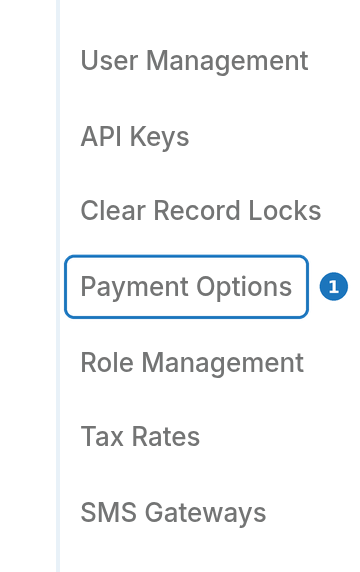
- In the sidebar open Admin, then click Payment Options.
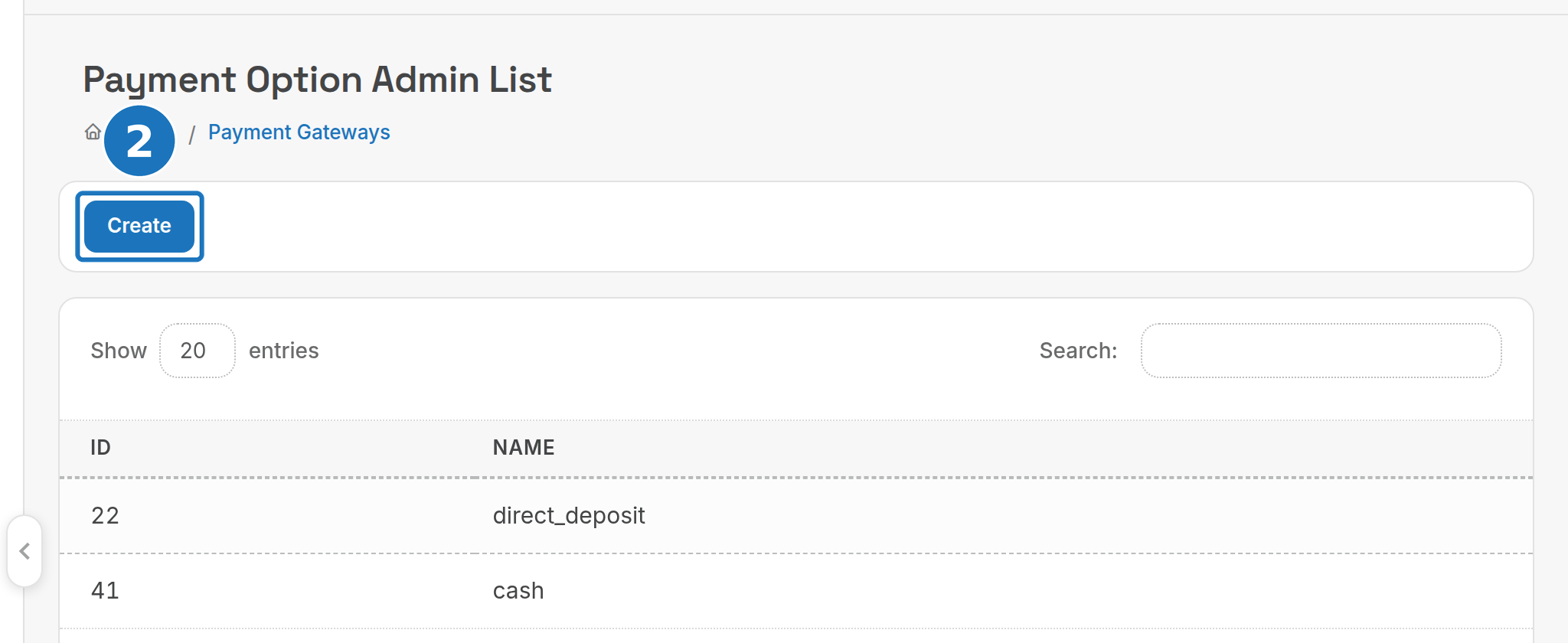
- Click Create.
- Choose the Payment Gateway. The Admin Options card changes to that gateway's credential fields.
- Enter a Public Name: the label customers see on invoices.
- Turn on Backoffice and Invoice Display (and Your Public Website if customers can pay this way online), then fill in Admin Options and Payment Options below and click Save.
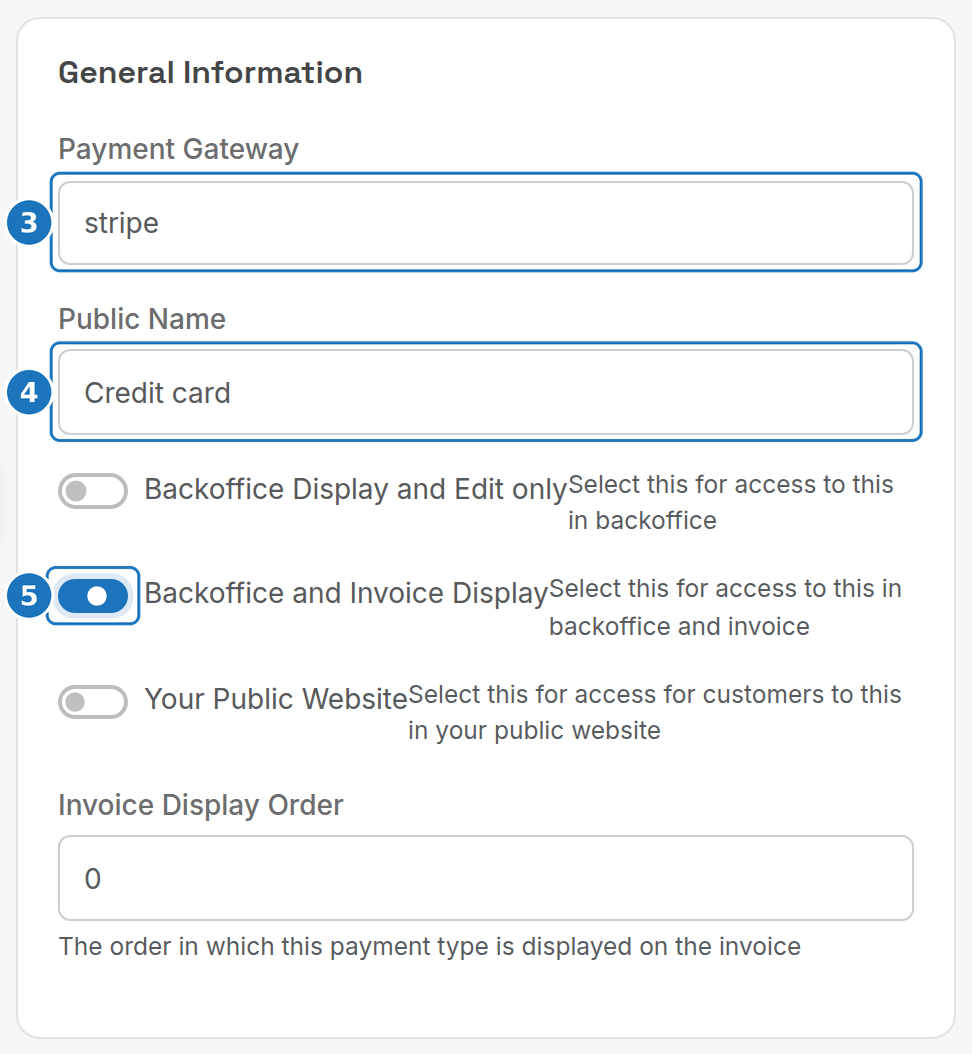
| Setting | What it does |
|---|---|
| Backoffice Display and Edit only | Staff can record payments of this type; it is not printed on invoices. |
| Backoffice and Invoice Display | Also lists the option on the invoice. |
| Your Public Website | Customers can pay with it in the customer portal. |
| Invoice Display Order | Sort order of the payment options printed on the invoice. |
| Payment Options (card) | Tick the payment types this gateway accepts: Direct Debit, Master Card, Visa, American Express, PayTo (Stripe only). |
Never paste live gateway credentials into a test department. Use the gateway's sandbox or test keys until you are ready.
¶ Surcharges
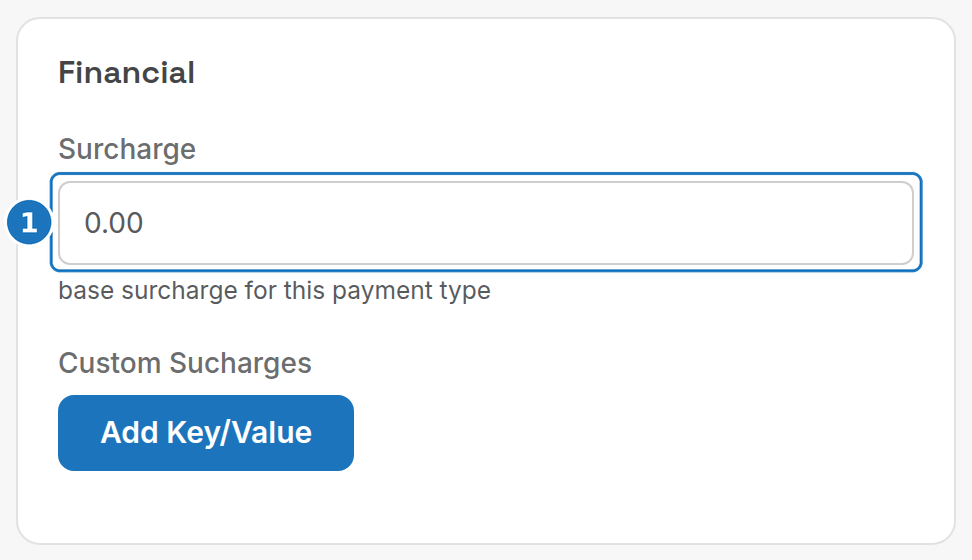
Surcharge is the base percentage added when a customer pays with this option. Custom Surcharges (Add Key/Value) refine it:
| Key | Value | Effect |
|---|---|---|
post_charge |
yes |
Charge the surcharge on the next invoice instead of the current one: PracBill finds an active service and adds a misc charge to it. Any other value adds the surcharge to the invoice being paid. |
fixed_rate |
yes |
Surcharge is a fixed amount (ex tax) rather than a percentage. |
description |
text | Description printed for the surcharge line; mainly for post_charge. |
amex, visa, mastercard |
decimal | Percentage for that card type, overriding the base surcharge. |
Once the option exists, set the department's Default Debit Provider and Default Credit Card Provider in Department settings, and pick the customers' gateways with Set Customer Payment Gateways.
¶ Stripe
Stripe takes Visa, Mastercard and American Express through Stripe Elements, plus PayTo bank payments on the New Payments Platform: one-off payments by BSB and account number or PayID, and recurring mandates the customer approves in their banking app. Cards and bank accounts are tokenised; PracBill stores only the Stripe token.
¶ Set up Stripe
- In the Stripe Dashboard open Developers, API Keys, and copy the Publishable key (
pk_test_orpk_live_) and Secret key (sk_test_orsk_live_). Use test mode first. - Under Developers, Webhooks click Add endpoint with the URL
https://billing.pracbill.com.au/api/stripe/webhook, select the eventspayment_intent.succeeded,payment_intent.payment_failed,setup_intent.succeeded,setup_intent.setup_failedandmandate.updated, then copy the Signing secret (whsec_). - In PracBill create a payment option with Payment Gateway set to stripe.
Then in the Admin Options card:
- Paste the publishable key into Key and the secret key into Private Key.
- Paste the signing secret into Webhook Signing Secret.
- Under Payment Options tick the card types you accept, and PayTo (Bank Payment) for bank payments, then click Save.
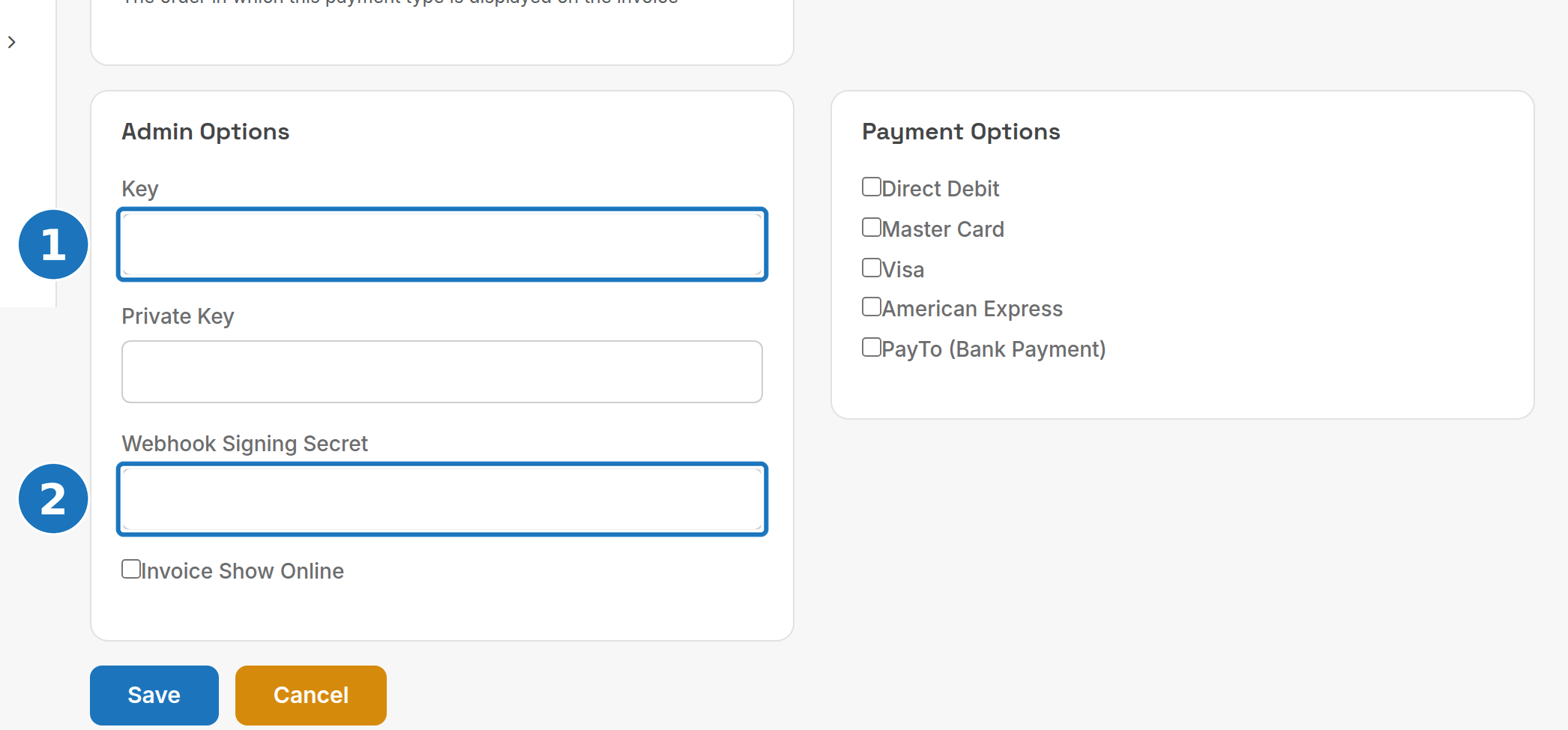
Invoice Show Online shows the option on the online invoice. Every webhook is verified with your signing secret; events older than 5 minutes and duplicates are rejected, and all events are logged.
¶ Card payments
Click Take Payment on the customer or invoice, enter the card in the Stripe form and click Process Payment. The result shows immediately and the card is saved as a tokenised payment method: see Take a payment.
¶ PayTo
When PayTo is ticked, customers see a PayTo (Bank Payment) tab next to the card form.
| Payment | How |
|---|---|
| One-off, BSB and account | Enter the 6-digit BSB, the 5 to 9 digit account number and the account holder name. |
| One-off, PayID | Pick the PayID type (email, phone or ABN) and enter the PayID. |
| Recurring mandate | On the customer's Payment Methods click Add Payment Method, choose Stripe, then Set Up PayTo Mandate. Enter a Mandate Name, the input method, Amount Type (Maximum or Fixed), Maximum Amount and Payment Schedule (Combined, Ad-hoc, Weekly, Fortnightly, Monthly, Quarterly, Semi-annually or Annually), then the bank details, and click Create Mandate. |
The customer approves the mandate in their mobile banking app; a webhook activates it in PracBill. A PayTo method set as Primary is charged automatically on the due date; otherwise pick it under Take Payment. PayTo payments move through Processing, Succeeded or Failed, and usually settle the same business day. PayTo is only available for Australian bank accounts in AUD.
¶ Stripe webhook events
| Event | Action in PracBill |
|---|---|
payment_intent.succeeded |
Marks the payment completed and updates the invoice balance |
payment_intent.payment_failed |
Marks the payment failed |
setup_intent.succeeded |
Creates the payment method from the completed mandate |
setup_intent.setup_failed |
Marks the mandate setup failed |
mandate.updated |
Deactivates the payment method if the mandate is revoked or cancelled |
¶ Stripe troubleshooting
| Symptom | Check |
|---|---|
| Payment failed | Insufficient funds, card declined, mandate revoked in the banking app, or wrong BSB or account number. |
| Mandate never appears | The customer has not approved it in their app; the webhook URL is unreachable; the signing secret differs from the Stripe Dashboard. |
| Webhook signature errors | Secret regenerated in Stripe, or a proxy modifying the request body. |
| Customer cannot see PayTo | PayTo not ticked on the payment option, non-AUD transaction, or the customer is on a saved-card screen rather than the payment screen. |
¶ GoCardless
GoCardless collects direct debits from bank accounts under a mandate the customer authorises on a GoCardless-hosted page. Bank-to-bank collection has lower fees and better success rates than cards for recurring billing. Any amount can be charged against an active mandate, refunds are supported, and AUD, GBP, EUR and other currencies are handled.
¶ Set up GoCardless
- Sign up at gocardless.com (start in the Sandbox environment) and complete verification.
- In the GoCardless Dashboard open Developers, Create, Access Token and copy the token.
- Under Developers, Webhooks, Create set the URL
https://billing.pracbill.com.au/api/gocardless/webhookand copy the Webhook Secret. - In PracBill create a payment option with Payment Gateway set to gocardless.
Then in the Admin Options card:
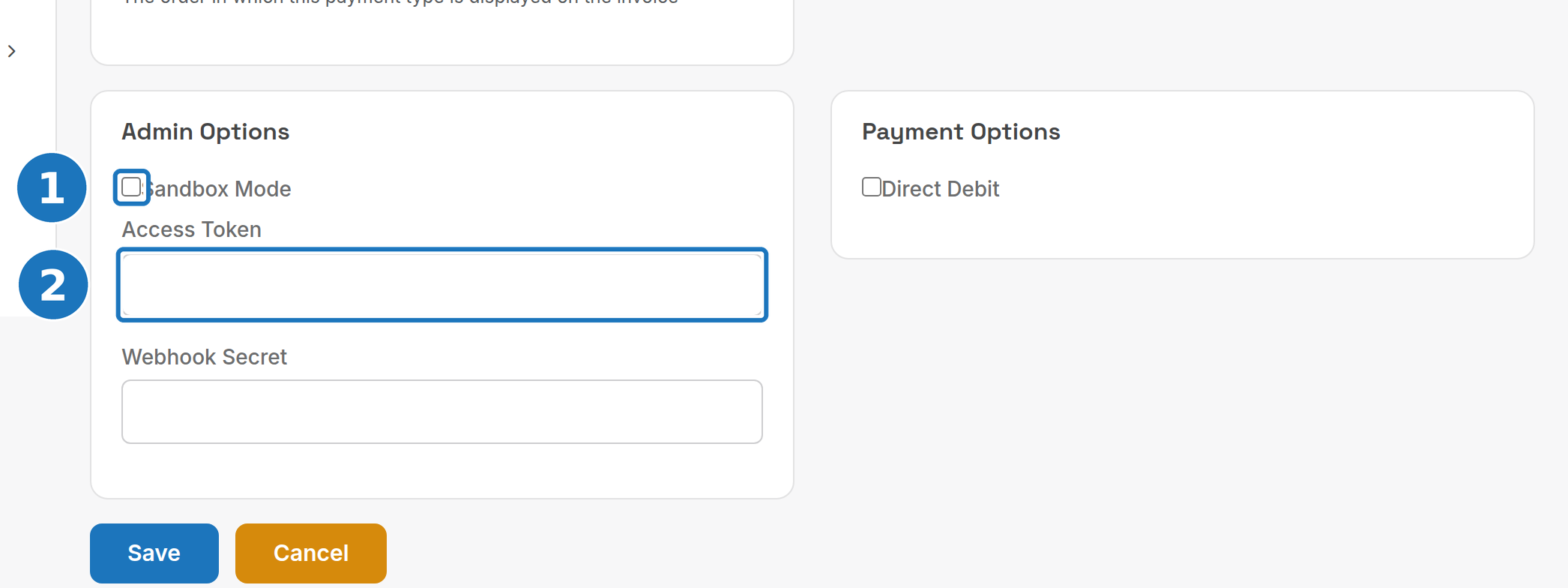
- Tick Sandbox Mode while testing.
- Paste the Access Token and the Webhook Secret.
- Under Payment Options tick Direct Debit, set any surcharge, then click Save.
¶ Set up a customer mandate
- On the customer record open Payment Methods, click Add Payment Method and choose GoCardless.
- Leave Email the setup link to the customer ticked and click Send Setup Email; the customer completes the mandate on GoCardless's hosted page. To do it with the customer present instead, untick the email option and click Open Setup Page.
- When the mandate completes, GoCardless calls the webhook and PracBill creates the payment method.
Mark the mandate Primary and invoices are collected on their due date; or take a payment by hand with Take Payment and the GoCardless method. Direct debits are asynchronous: the payment shows as Pending until the bank confirms it, typically 3 to 5 business days. Refund from the payment record with Refund (full or partial), which also takes 3 to 5 business days.
| Payment status | Meaning |
|---|---|
| Pending Submission | Created, not yet sent to the bank |
| Submitted | Sent to the bank network |
| Confirmed | Funds collected |
| Paid Out | Funds transferred to your GoCardless account |
| Failed | Insufficient funds, cancelled mandate or similar |
| Cancelled | Cancelled before processing |
| Charged Back | Customer disputed the payment |
¶ GoCardless webhook events
| Event | Action in PracBill |
|---|---|
billing_requests.fulfilled |
Creates the payment method from the completed mandate |
billing_requests.cancelled / .failed |
Marks the pending request cancelled or failed |
mandates.cancelled / .failed / .expired |
Deactivates the payment method |
mandates.reinstated |
Reactivates the payment method |
payments.confirmed |
Marks the payment completed |
payments.failed / .cancelled / .charged_back |
Marks the payment failed (and updates the invoice balance on failure) |
payments.paid_out |
Marks the payment reconciled |
¶ GoCardless troubleshooting
| Symptom | Check |
|---|---|
| Setup email not received | Customer email address; spam folder. |
| Payment pending too long | Allow 3 to 5 business days; check the GoCardless Dashboard; confirm the webhook URL is reachable. |
| Webhook signature errors | The secret in PracBill differs from the Dashboard, was regenerated, or a proxy alters the request body. |
| Payment failed | Insufficient funds, closed account, mandate cancelled at the bank, or invalid bank details. |
¶ Ezypay
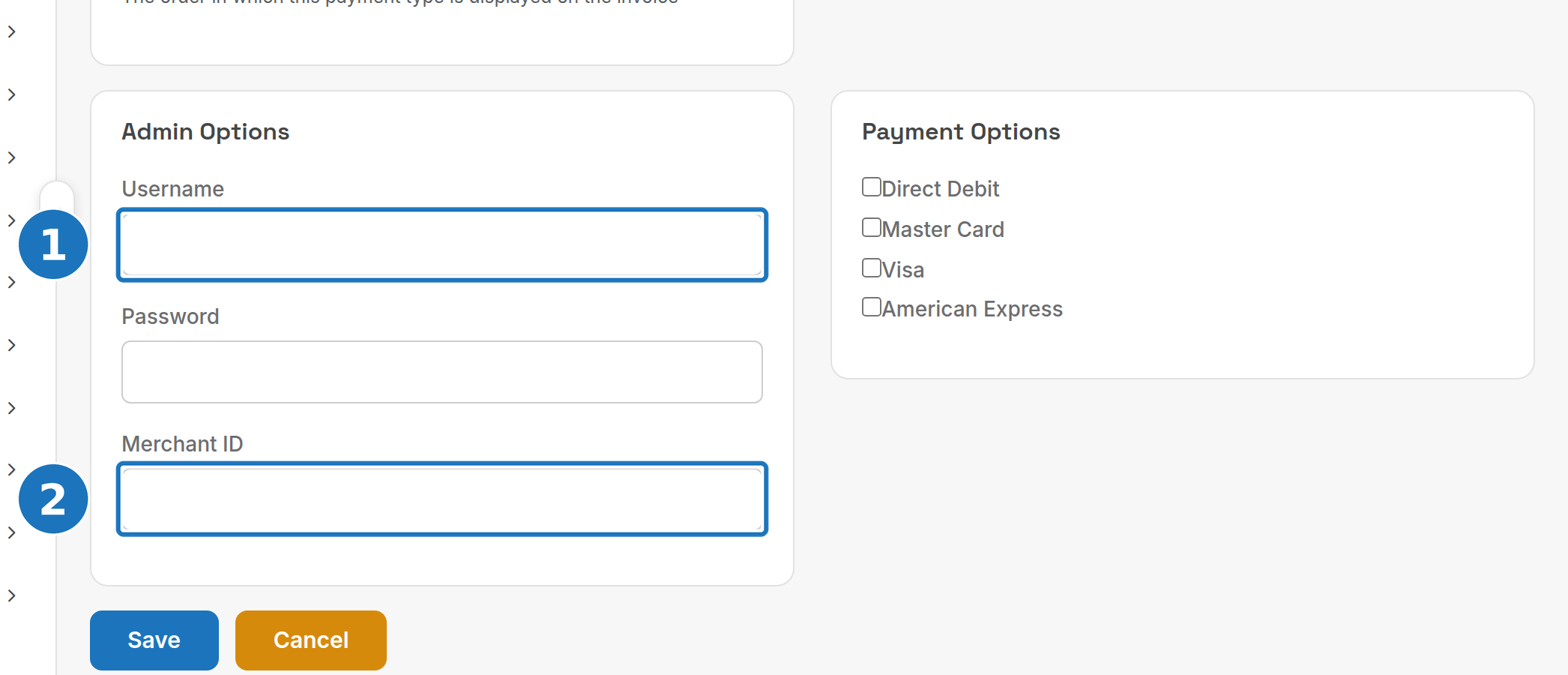
Create a payment option with Payment Gateway set to ezypay. Enter the Username and Password (1) and the Merchant ID (2) Ezypay gave you, then tick the card types and Direct Debit as needed.
Refunds: a completed Ezypay transaction can be refunded in full once, from the Payments section of the paid invoice. The Refund action disappears after it has been used on that transaction. It needs Admin permission on the Customer Payments module.
¶ Credits as a payment type
PracBill also has a built-in credit payment type: a simple way to apply a credit against one or more invoices. It applies tax for reporting if the invoice has tax, and entries can be back-dated, which changes reports already run for that period. The department administrator turns it on or off with Credit Payment Option in the Payment Gateways card of Department Settings. With it off, use credit notes instead; Xero-integrated departments must do this, see Xero integration.