An invoice is what a customer pays: service fees, call usage and one-off charges for a billing period. Bill runs create most invoices for you; this page covers reading an invoice, creating one by hand, editing its charges, and what draft and pending mean. For staff who bill customers.
¶ Find an invoice
- Open Sales → Invoices, or type the invoice number in the Search bar at the top of any page.
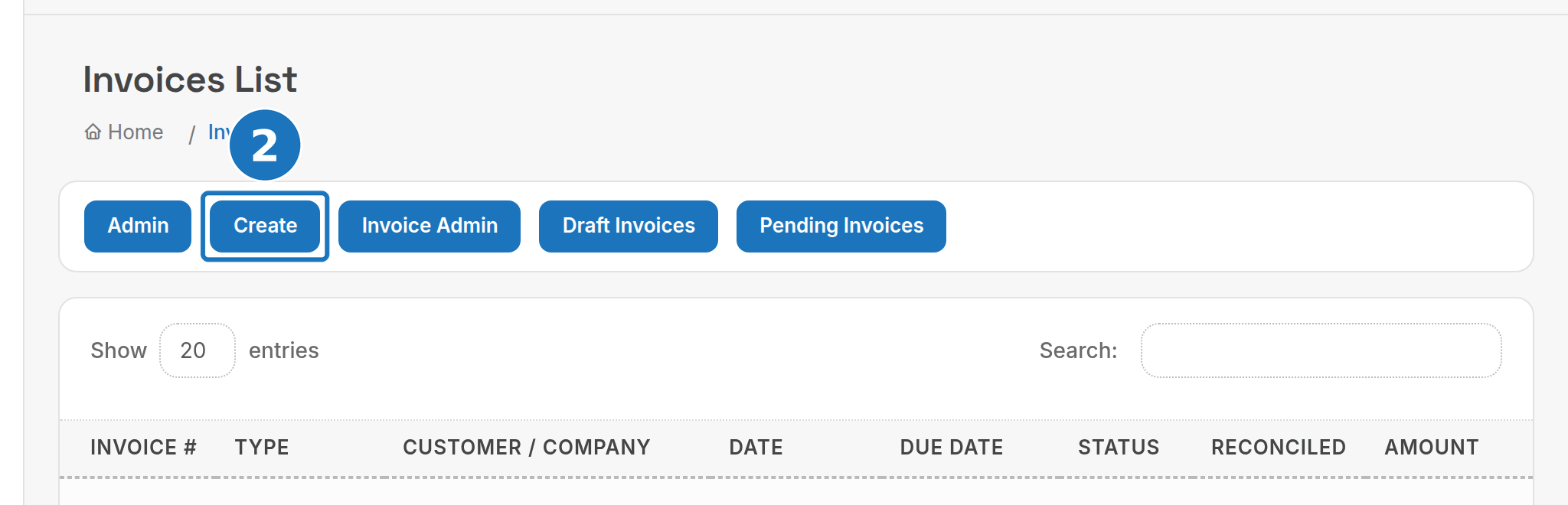
- The list shows every invoice for your department with its Type, Status and Amount. Click Create here to start a manual invoice, or open Draft Invoices and Pending Invoices to review held ones.
A customer's own invoices are on the customer page under Unpaid Invoices and Paid Invoices; Create New Invoice there starts a manual invoice with the customer already filled in.
¶ Read an invoice
The invoice page opens with a status banner (Unpaid, Paid, Overdue by N days) and an action bar.

| Button | What it does |
|---|---|
| invoice List | Back to the list. |
| View Audit Log | Every change to the invoice, by whom and when. |
| View PDF | Opens the PDF the customer receives. |
| Email PDF | Emails the PDF to the customer's invoice contacts, plus any address you add. |
| Download Invoice CSV | The invoice as a spreadsheet. |
| Copy / Convert | Copies the invoice into a new quotation, invoice, purchase order, RFQ or credit note. |
| Re-Process Invoice | Recalculates service fees, misc charges and products from the current records. It does not fetch or re-rate calls. |
| Print Receipt, Email Receipt | Shown once the invoice is paid: a receipt for the payment. |
| Edit | Change dates, terms, the usage period and the product charges. |
| Send a general email that links this invoice. | |
| Delete | Voids the invoice. |
| Mark Bad Debt (in the banner) | Writes the balance off as bad debt. |
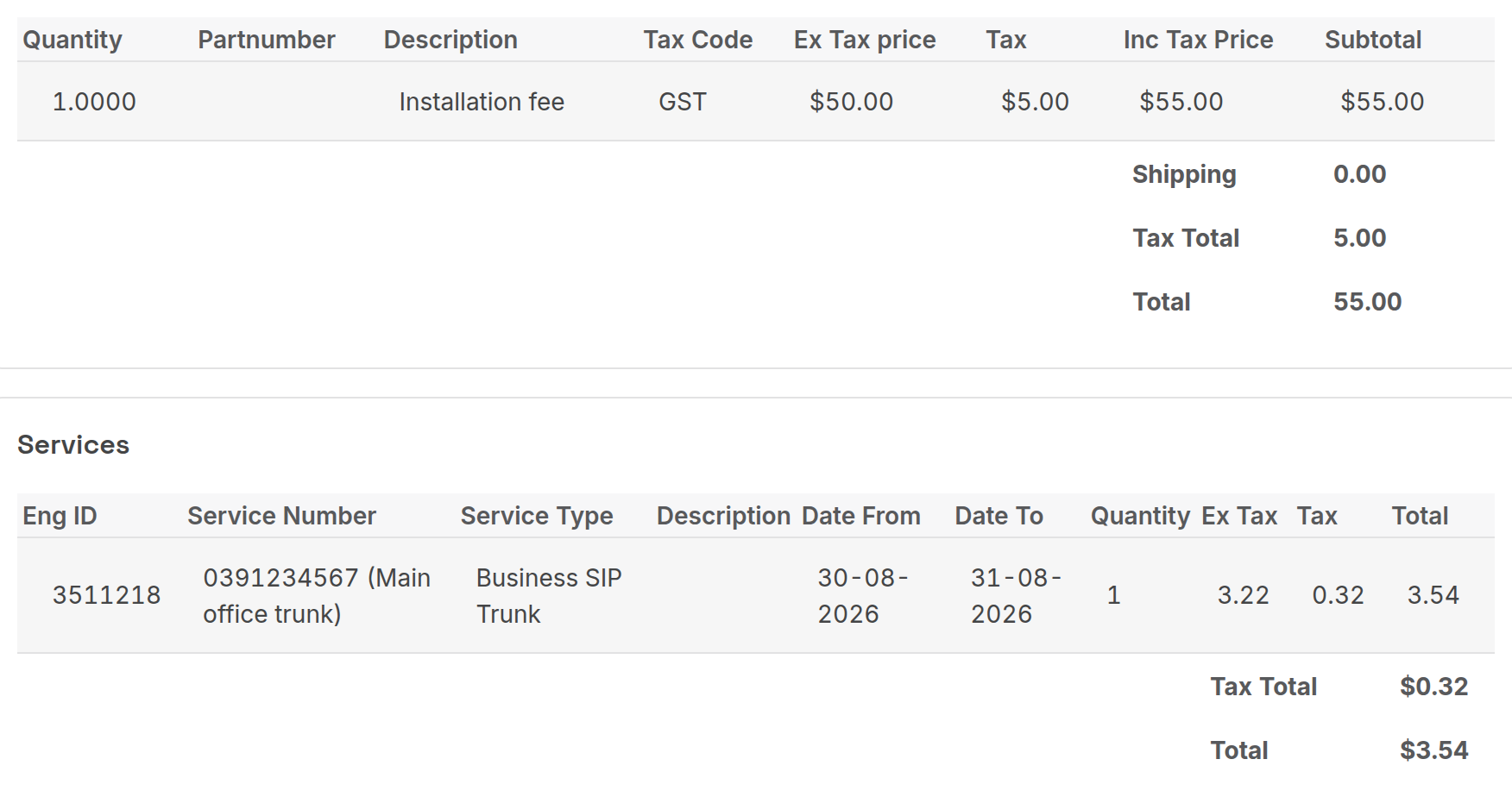
Below the action bar: Details (type, sales person, date, terms, due date, purchase order), Bill To and Ship To, Usage Period Details, the Charges tables (products, then services with their Date From and Date To), the totals, Payments (see Take a payment), related orders and the timeline of notes.
Download CDR, Advanced Options → Re-Rate Calls and Add to Open Bill Run appear only on invoices with rated calls or while a bill run is open. Re-rating a large period is slow; the legacy advice is to run it in a separate browser window.
¶ Create an invoice manually
Use this when a bill run missed a customer, to back bill, or to charge a one-off item. Everything else comes from bill runs.
- Go to Sales → Invoices → Create, or Create New Invoice on the customer page.
- Under Bill To, search for the customer (skip if you started from the customer page).
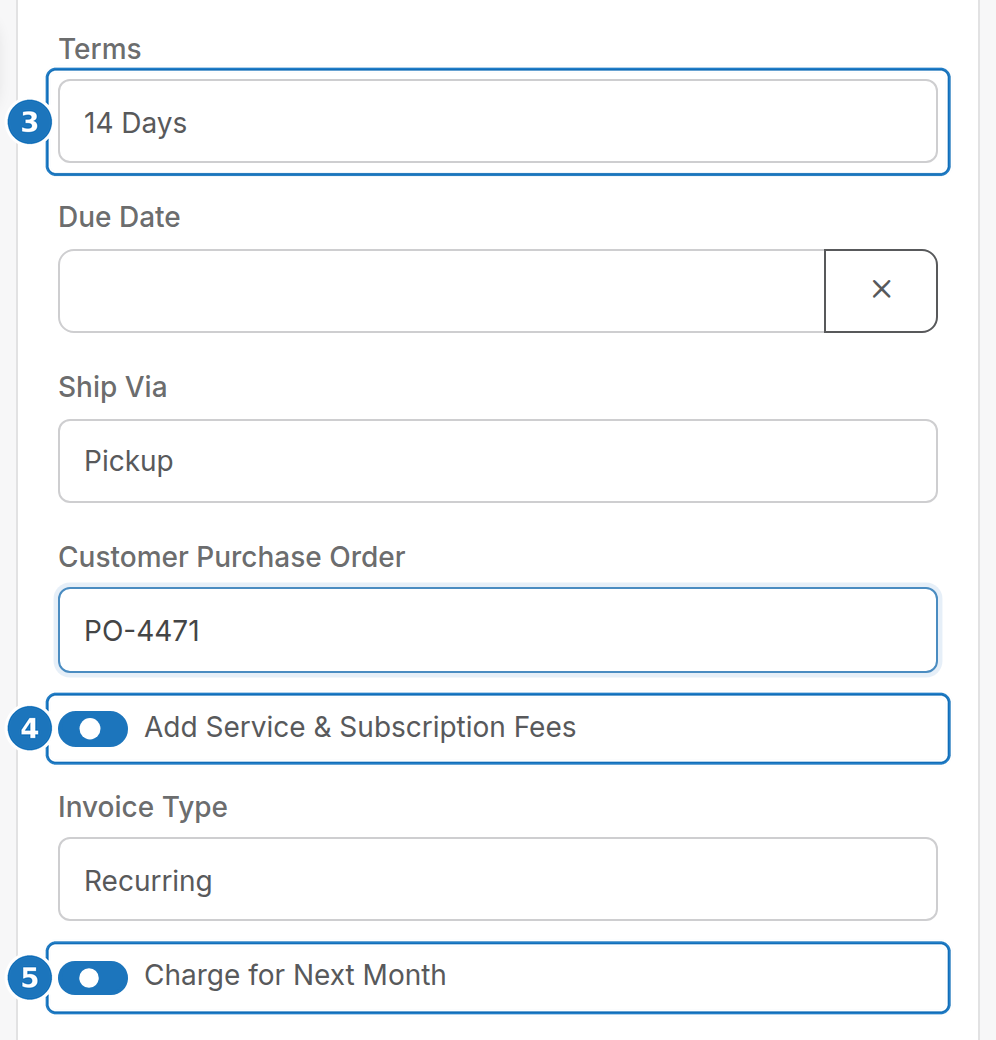
- Check Date and Terms; Due Date fills itself from the terms.
- Turn on Add Service & Subscription Fees to bill the customer's services. Leave it off for an invoice of one-off charges only.
- Turn on Charge for Next Month to bill service fees for the coming month in advance (the normal bill-run behaviour). Leave it off when back billing a past period.
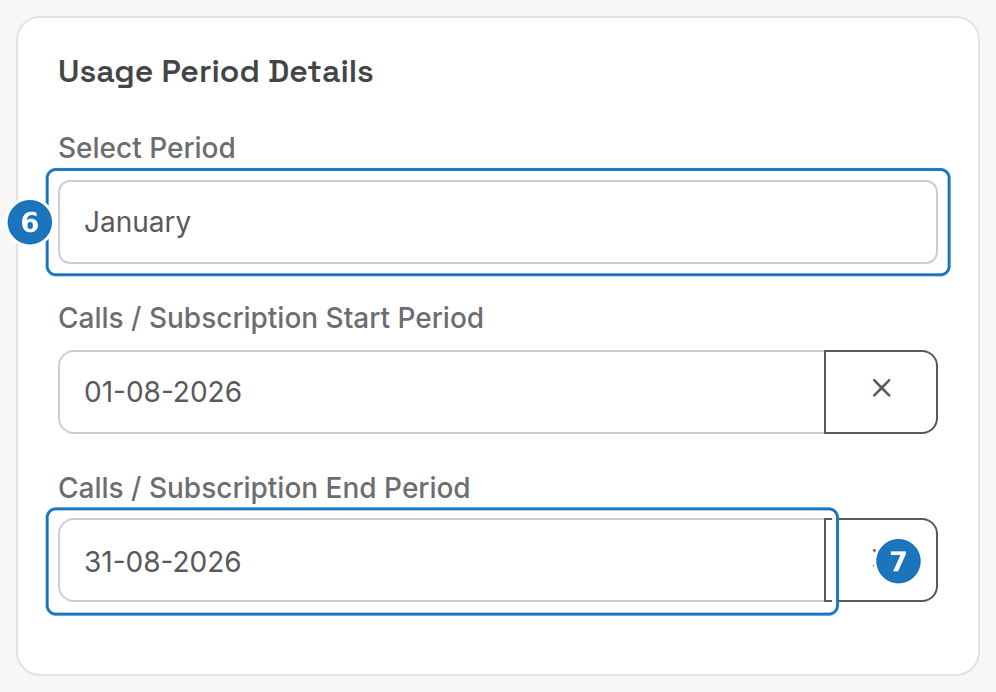
- Under Usage Period Details, pick a month or quarter from Select Period, or
- type the Calls / Subscription Start Period and End Period yourself. Calls in this range are billed; a service that started inside the range is pro-rated from its start date.
- Add any one-off product charges (see below), then click Save.
The first save calculates the totals. Check the charges, then Email PDF to send it.
Fix a wrong service price by editing the service, then click Re-Process Invoice. Saving the invoice again does not repull service fees.
| Field | Notes |
|---|---|
| Invoice Type | Only matters when the department has more than one; see Invoice types. |
| Ship Via, Customer Purchase Order, Discount Code, Comments | Optional; they print on the PDF. |
| Sales Person | Defaults to you. |
Worked examples for back billing and prepaid periods are on Pro-rata, back billing and prepaid.
¶ Add or remove charges
- Open the invoice and click Edit.
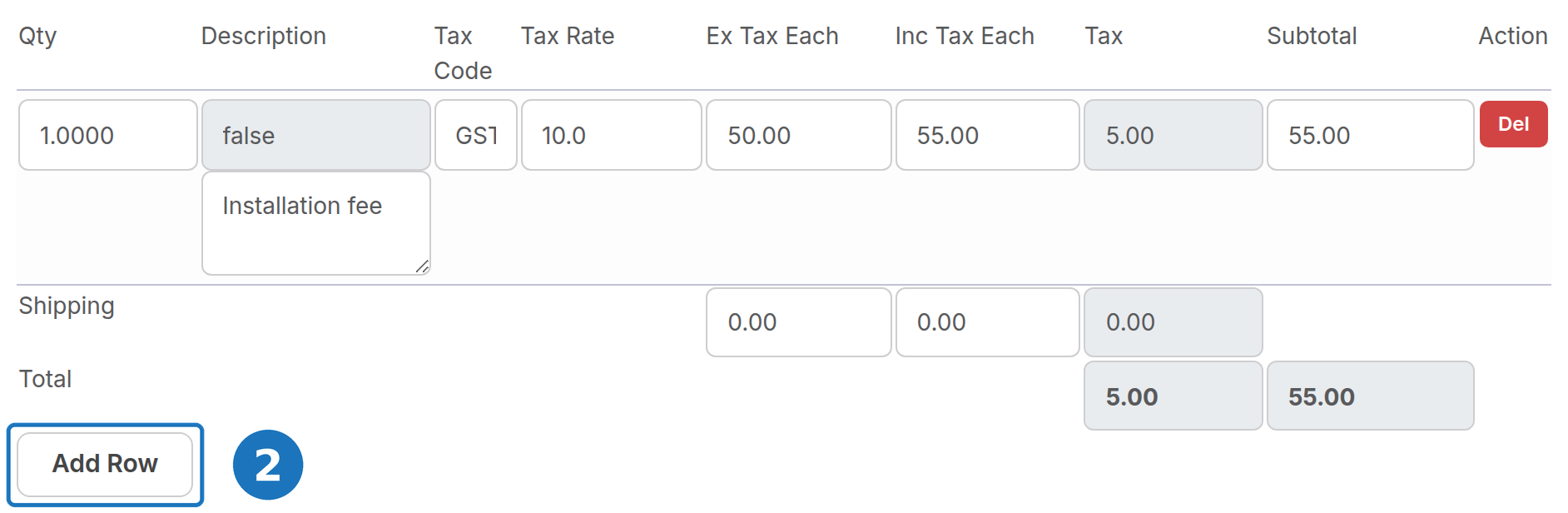
- Scroll to the charges table and click Add Row. Type a part number to pull a product from Stock → Products, or leave it blank and type a Description, Ex Tax Each and Tax Code for a free-form charge. Del removes a row.
- Click Save.
Recurring charges that should appear every month belong on the customer as Misc Account Charges, not on a single invoice.
¶ Copy or convert an invoice
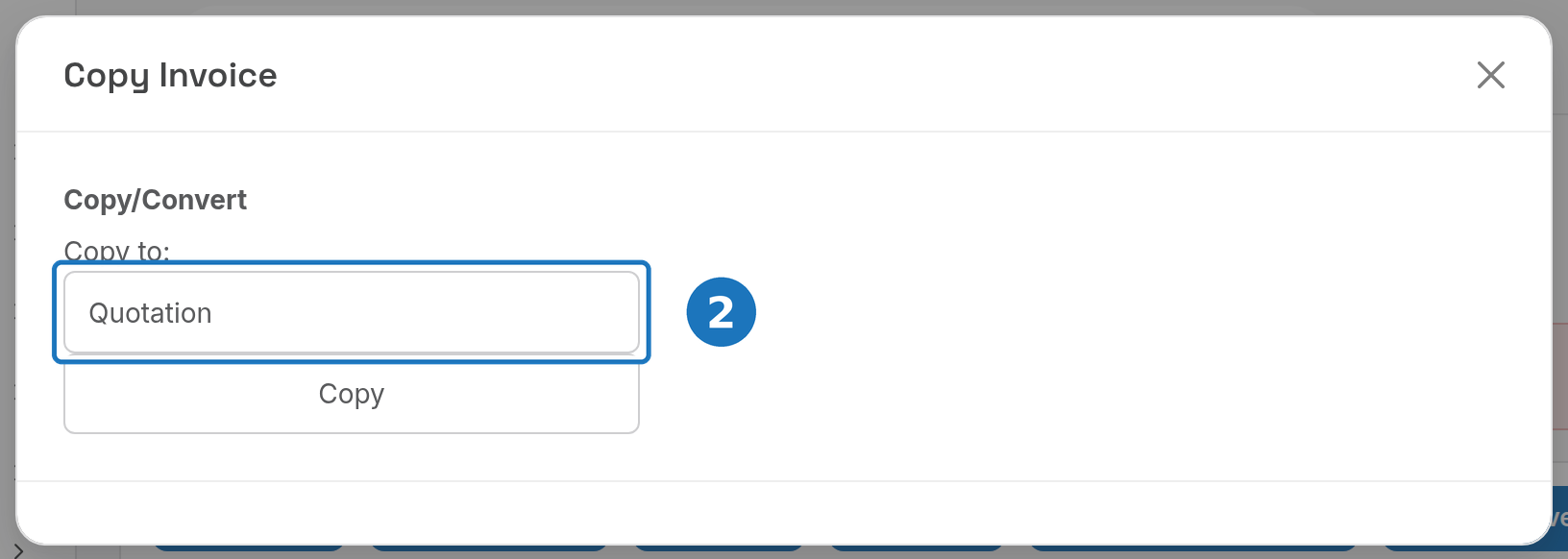
- Click Copy / Convert on the invoice.
- Choose what to create under Copy to and click Copy.
¶ Resend the PDF
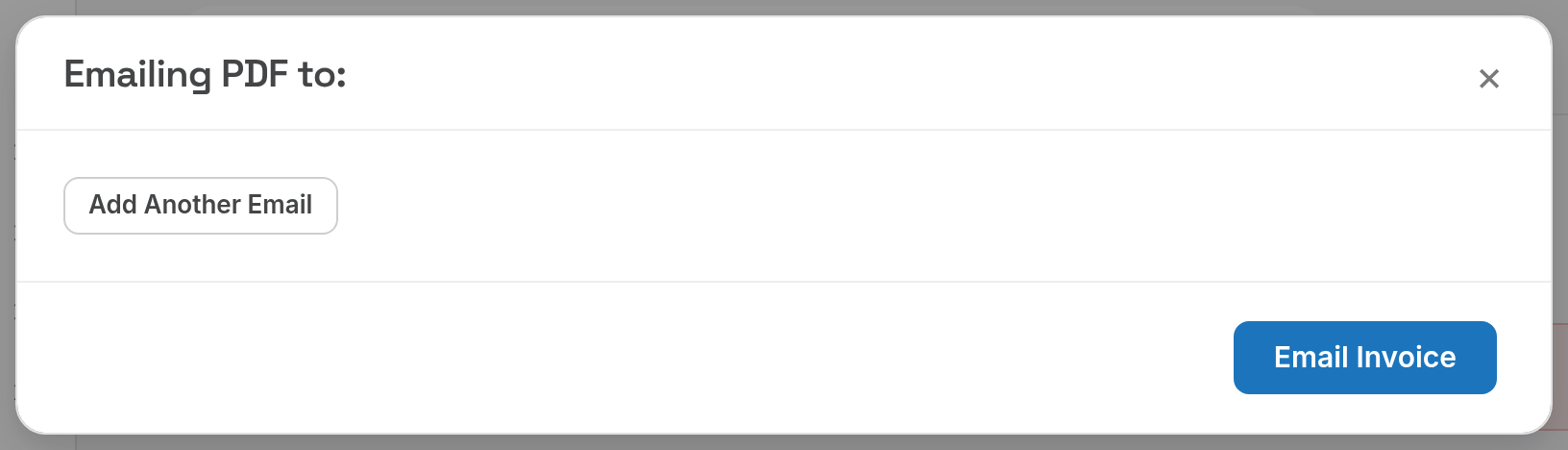
- Click Email PDF.
- The dialog lists the customer's invoice contacts. Click Add Another Email for a one-off address; tick Only send to custom address to skip the contacts. Click Email Invoice.
For a paid invoice, Email Receipt sends the receipt instead.

¶ Invoice statuses
| Status | Meaning |
|---|---|
| Draft | Held back by a bill run because usage or the total changed sharply (see below). Not sent. |
| Pending | Held for review; not yet authorised or sent. |
| Authorised | Approved with the bill run; sent if Email Authorised Invoices is on in Department Settings. |
| Unpaid | Issued, balance outstanding, due date not reached. |
| Overdue | Past the due date with a balance. The banner shows the days overdue. |
| Paid | Balance is zero. |
| Bad Debt | Written off with Mark Bad Debt. |
¶ Draft invoices
A bill run flags an invoice as a draft when both are true:
| Rule | Default |
|---|---|
| Call usage change | Usage moved by more than 20% from the previous invoice. |
| Call spend | The current or previous invoice had more than $50 ex tax of usage. |
- Open Sales → Invoices → Draft Invoices (or Pending Invoices).
- Open each invoice and check the usage and total; edit or re-process as needed.
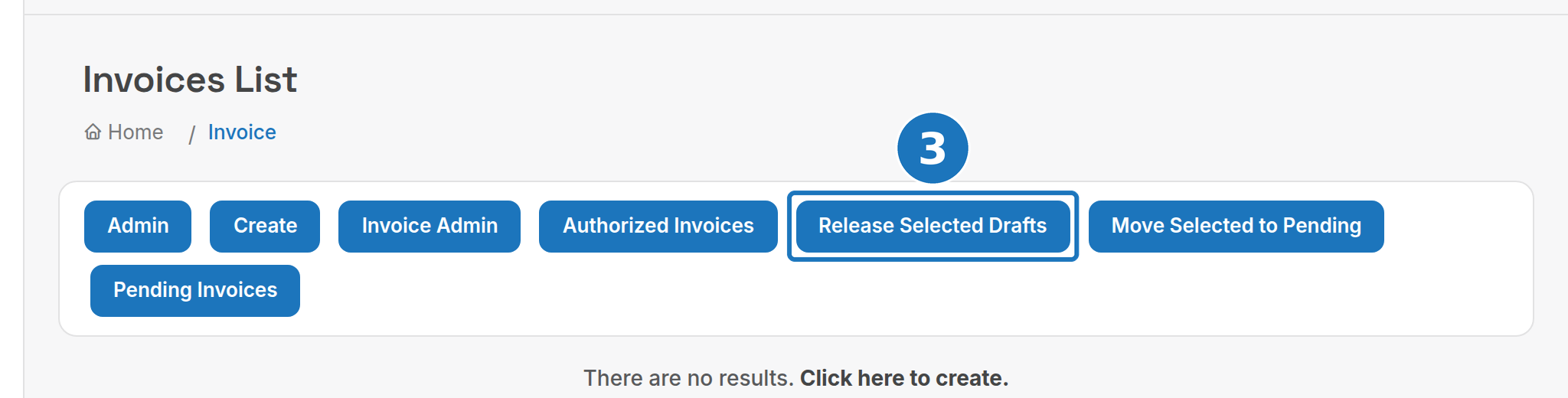
- Tick the invoices and click Release Selected Drafts to authorise them, or Move Selected to Pending to hold them.
Your own thresholds are set per department by PracBill support:
| Setting | What it does |
|---|---|
| Call Change Percentage | Whole number; 20 means a 20% change in billed usage. |
| Min Call Spend | Ex tax usage both invoices must reach before the percentage applies. Stops small accounts (one international call on a $20 bill) being flagged. |
| Invoice Total Percentage Change | Percentage change of the invoice total, excluding credits. |
| Min Total Invoice | Total both invoices must reach before the total percentage applies. Set to 1 to skip ended customers. |
| No Draft Mode | 1 disables drafts. All other draft settings must be cleared for it to take effect. |
¶ Bulk actions (Invoice Admin)
Sales → Invoices → Invoice Admin works on every invoice of a type for a date range: Email Invoices, Print Invoices, Update Invoice Date, Re-Process Invoices and Delete Invoices. Use it after a bill run, never on a single invoice.
Next: Invoice types, Pro-rata, back billing and prepaid, Take a payment.