A payment method is a bank account or card saved against a customer through your payment gateway. PracBill charges it on the invoice due date when automated payments are on, and you can charge it by hand from an invoice. Each customer can have a primary method and a backup.
¶ Set up the department
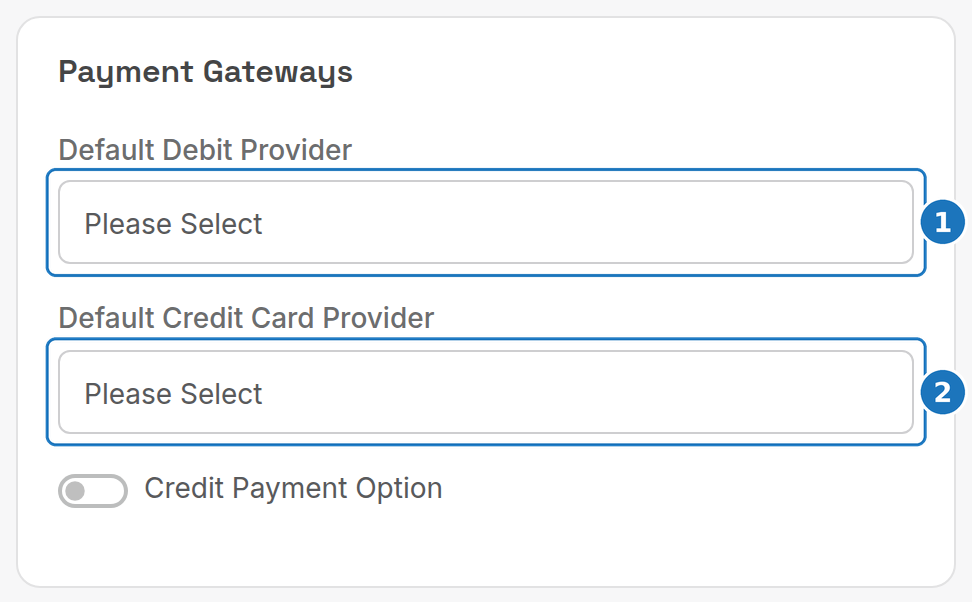
- Go to Admin → Department Settings and open your department. Under Payment Gateways choose the Default Debit Provider (bank accounts) and the Default Credit Card Provider. Select both even if you only use one.
- Under Billing Behaviour turn on Auto Payments and pick Auto Payment Notifications.
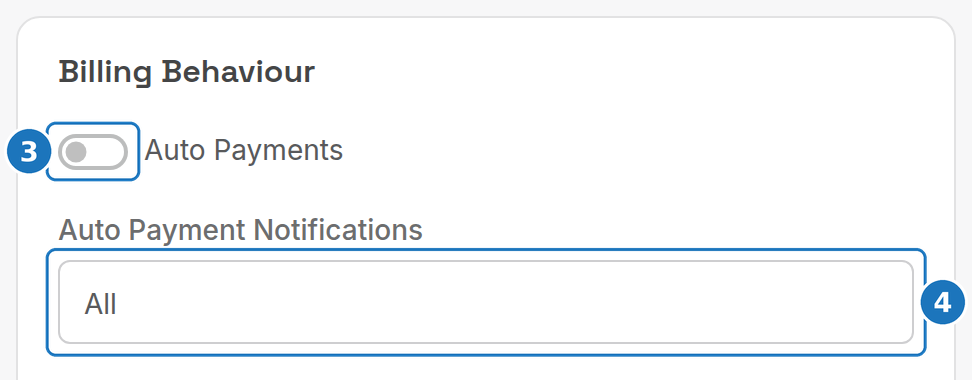
| Notification setting | Customer gets |
|---|---|
| All | An email whether the payment succeeded or failed. |
| No Notifications | Nothing. |
| Failed Only | An email only when a payment fails. |
Gateways are added under Admin → Payment Options; see Payment gateways.
¶ Set the customer's payment method
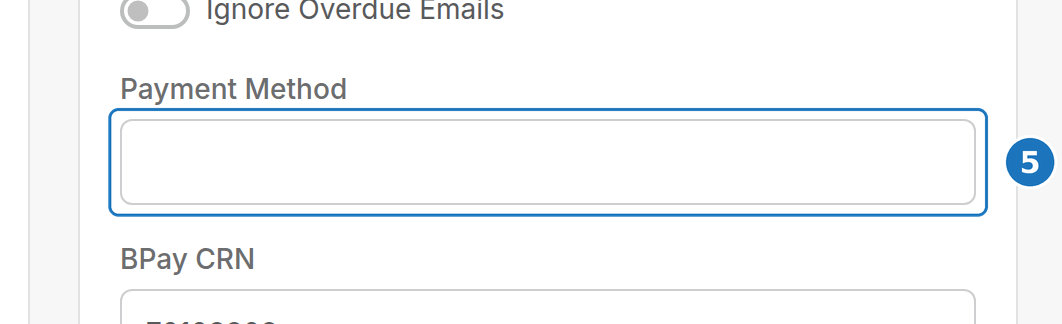
- Edit the customer and, under Billing Details, set Payment Method to Automated, Credit Card or Direct Debit (the three names behave the same). Save.
¶ Add a bank account or card
- On the customer page scroll to Payment Methods and click Add Payment Method.

- Choose the gateway and the type (bank account or credit card), enter the details, and set it as the Primary or Backup method (where your gateway allows more than one).
- Save. The method appears in the list with a truncated view of the details.
| Column | Meaning |
|---|---|
| Gateway | Which payment gateway holds the details (BPoint, Ezidebit, Stripe and so on). |
| Type | Credit card or bank account. |
| Primary | Primary, backup or inactive. |
| Details | Last digits of the card or account, plus the nickname if you gave one. Migrated methods may show fewer details. |
| Date Added | When the method was saved in PracBill. |
Once saved, the bank or card details cannot be edited: only the Nickname and Status can. To change details, add a new method and set the old one to inactive. An inactive method cannot be reactivated.
¶ Supported gateways
| Gateway | Credit card | Bank account | Multiple methods per customer |
|---|---|---|---|
| eWAY | Yes | Yes | Yes |
| Stripe | Yes | No | Yes |
| Worldpay for Platforms | Yes | Yes | No |
| Till Payments | Yes | No | No |
| Ezidebit | Yes | Yes | No |
| BPOINT | Yes | Yes | Yes |
| GoCardless | No | Yes | Yes |
If a gateway allows only one method, saving a new method sets the previous one to inactive. Some older gateways are deprecated; contact support if yours stops working, or if you need a gateway not listed.
¶ How automated payments run
- On an invoice's due date PracBill collects the customer's unpaid invoices.
- It checks the customer's Payment Method setting and charges the whole account balance, which can include newer invoices not yet due.
- If the primary method fails, it tries the backup method.
- If the current invoice is already paid, no charge is attempted on that due date, even if older invoices are outstanding.
Failed charges appear in the Failed Payments report; see Customer payments.
There is no pause switch. To stop automated payments, change the customer's Payment Method or put them in Credit Management on the customer page. The saved methods stay in place for when you switch back.
Related: Take a payment, Customer payments.