A price book gives a customer their own prices for products and service types; a quote template is a saved list of products you quote often. Both feed quotes and services for that customer. For sales staff.
¶ Create a price book
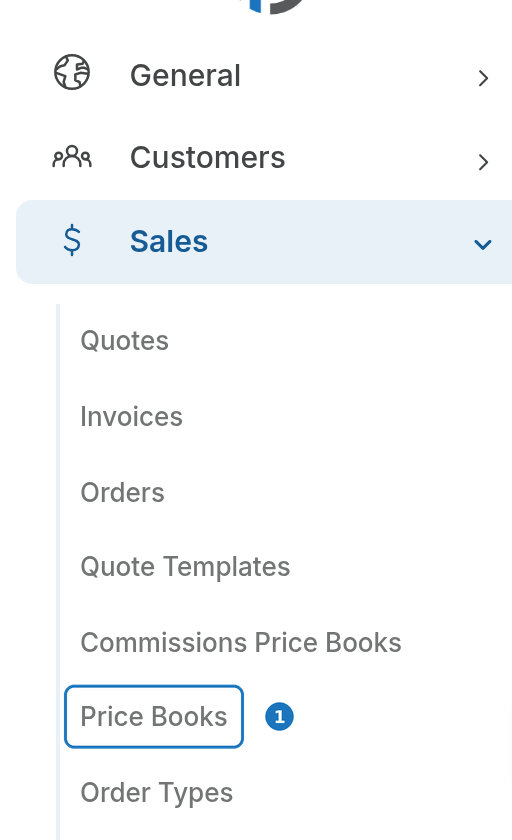
- Open Sales → Price Books and click Create.
- Enter a Name.
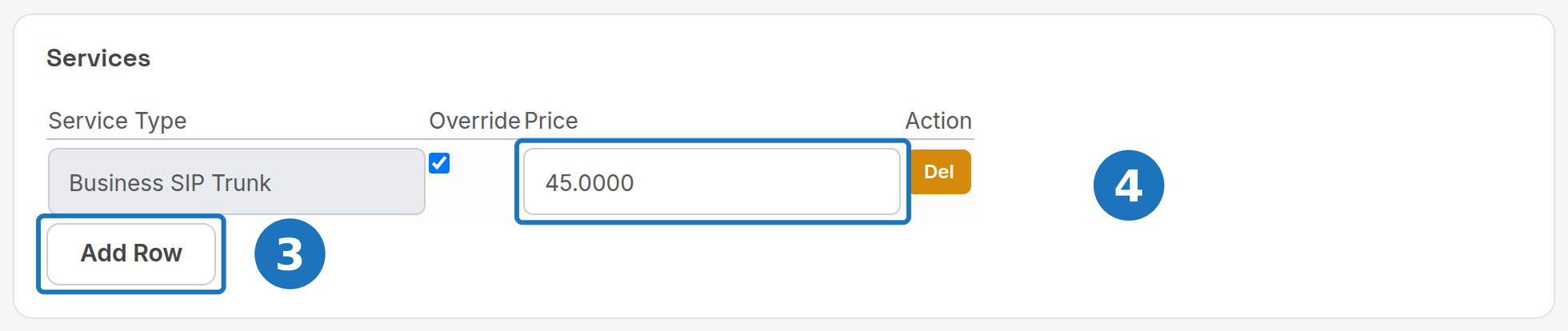
- Under Products or Services, click Add Row and type the part number or service type to search.
- Tick Override and enter the Price for this book. Del removes a row.
- Click Save.
A price book only holds the items whose price differs; anything not listed uses the normal price.
¶ Assign a price book to a customer
- Open the customer and click Edit.
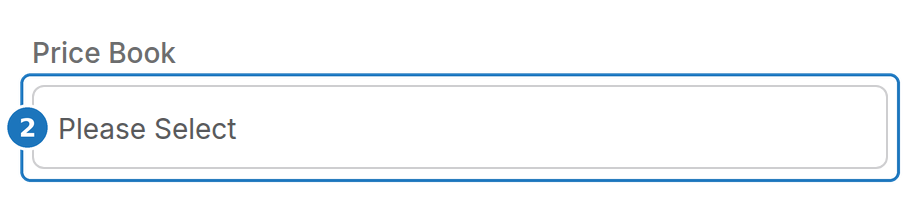
- Under Billing Details, choose the Price Book and click Save.
New services and product lines for that customer then pick up the book's prices. Existing services keep the price they were created with.
Commissions Price Books (Sales → Commissions Price Books) work the same way for reseller commission rates and are set on the customer as Reseller Commission Book.
¶ Create a quote template
- Open Sales → Quote Templates and click Create.
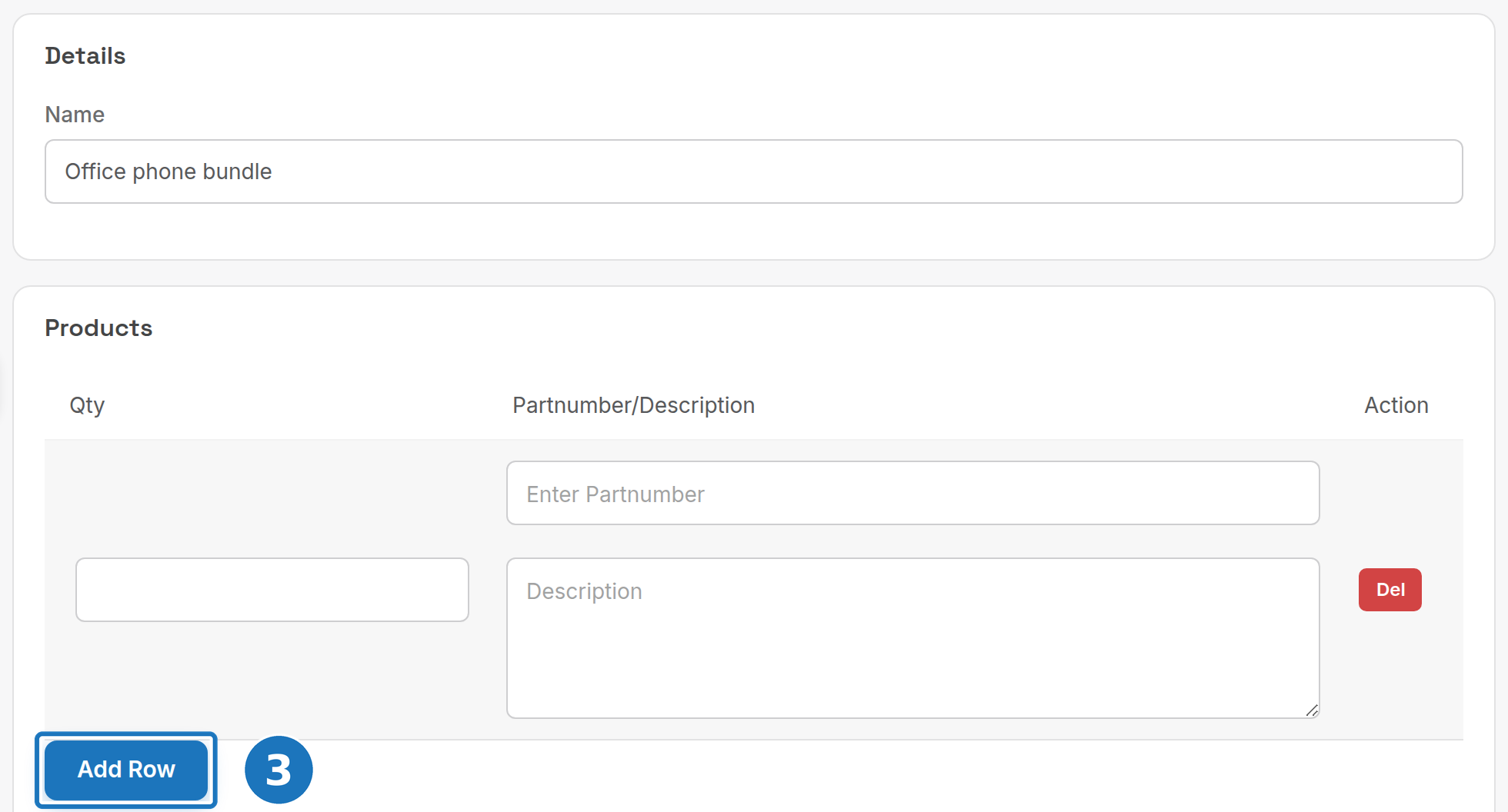
- Enter a Name.
- Click Add Row for each product: Qty and a part number or free Description.
- Click Save.
¶ Use a template on a quote
- Open Sales → Quotes → Create, choose Customers or Leads under To and pick the recipient.
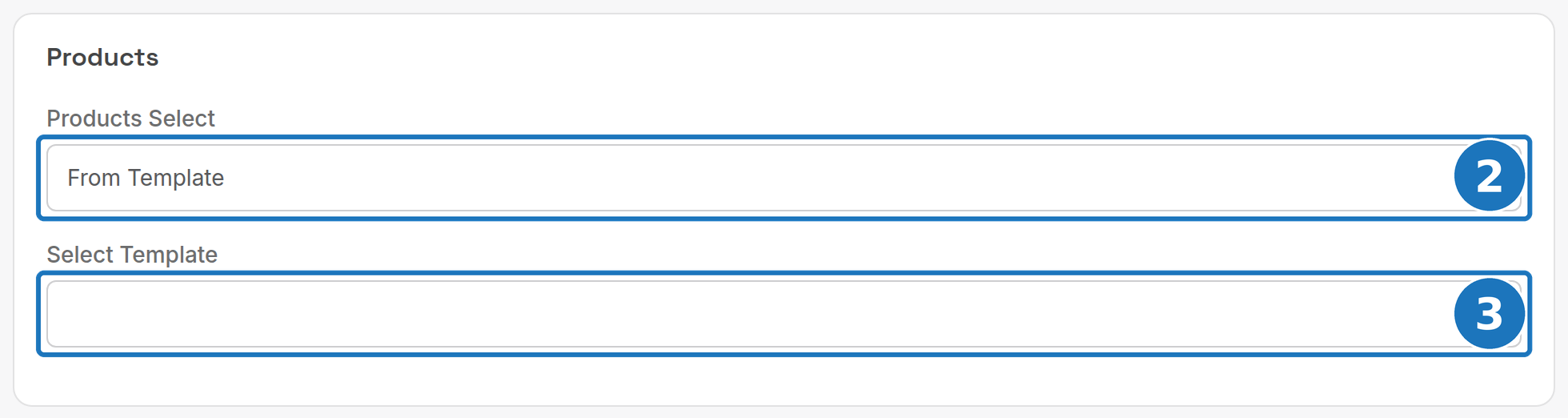
- Under Products, set Products Select to From Template.
- Choose the template under Select Template; its lines fill the quote, priced from the customer's price book. Enter Manually gives an empty product table instead.
- Click Save, then Copy / Convert the quote to an invoice or order once accepted.