Reports on leads and who is working them. Both are on the Leads tab under Management → Reports → New Report. See Reports for how to run, save and schedule a report.
¶ Leads report example
Filter by period, Status, Source and Assigned Users.
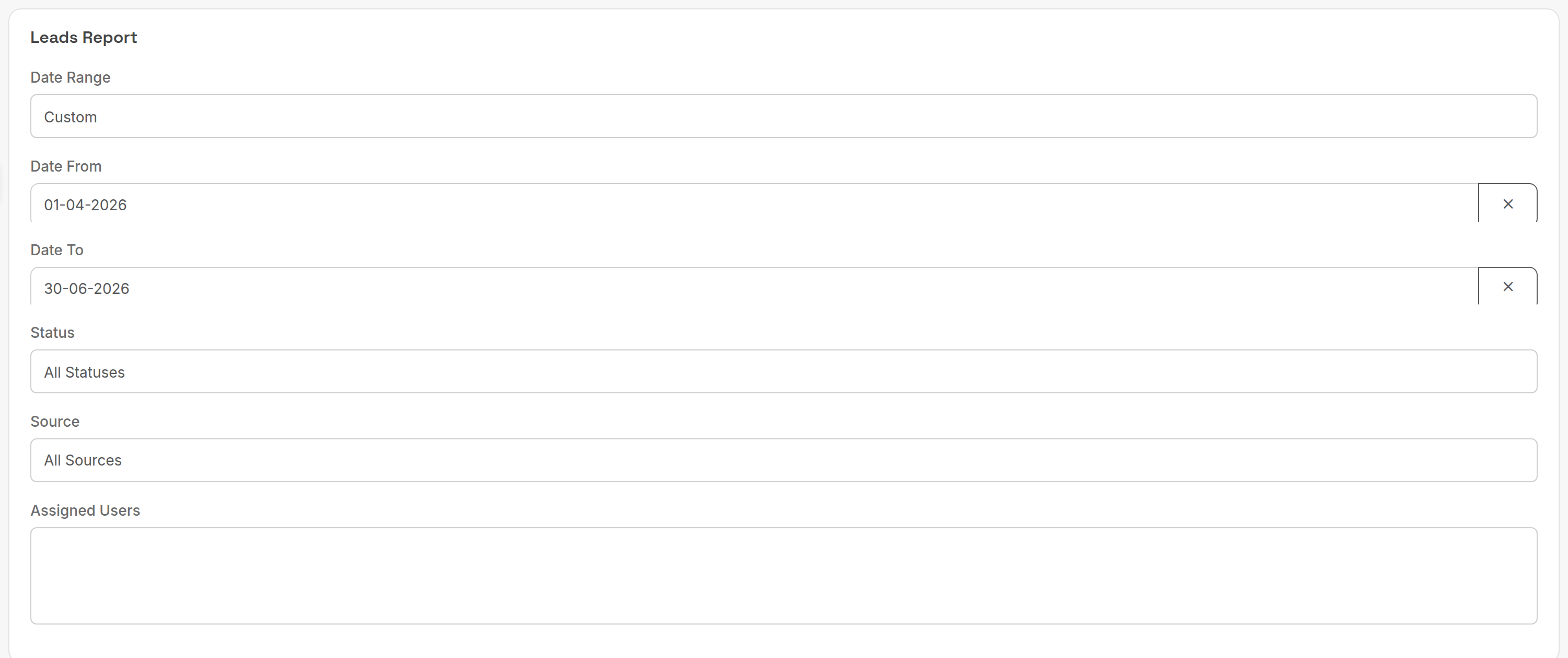
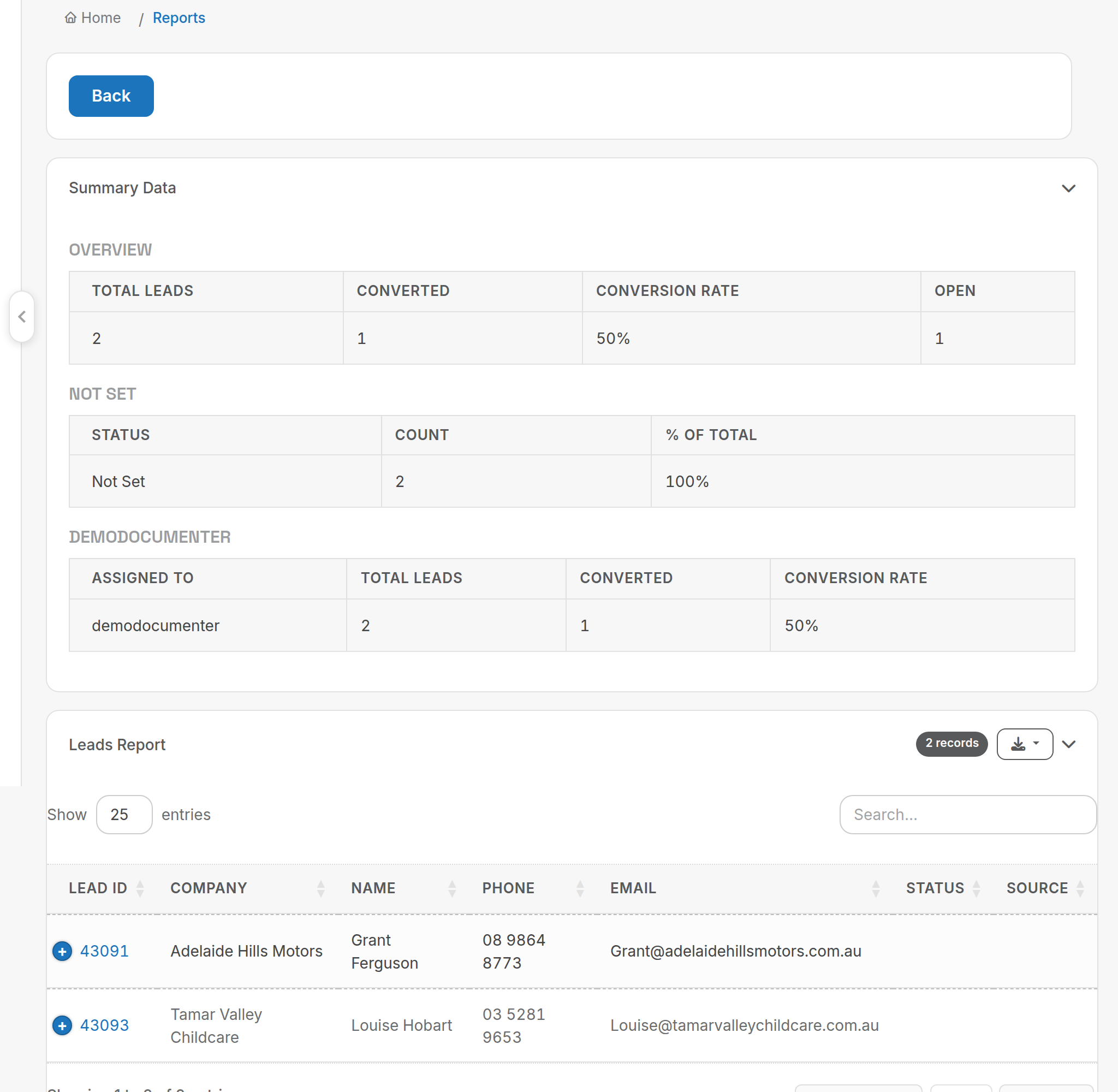
The output starts with summary tables, then one row per lead.
¶ Reports
| Report | What it answers | Key criteria | Columns and rules |
|---|---|---|---|
| Leads Report | How many leads came in, where from, who has them and how many converted. | Date Range (lead created date); Status; Source; Assigned Users. | Summary: Overview (Total Leads, Converted, Conversion Rate = Converted / Total, Open), a Status breakdown (count and % of total per status) and Leads by Assigned User (total, converted, conversion rate per user). Detail: Lead ID, Company, Name, Phone, Email, Status, Source, Assigned User, Date Created, Converted. A lead is converted once it is linked to a customer record. Statuses come from the LeadStatus lookup table and sources from LeadSources. |
| Leads User Report | Which leads were assigned to which users in a period. | Assigned Users (multi, or all); Date Range (when the lead was assigned, not created); Order By (Name, Company, Status, Date Created); Order Direction. | Leads are shown regardless of status (active, converted or closed). Assigned User is the user currently responsible for the lead. |
A lead with no status shows as Not Set in the status breakdown. Add statuses under Admin → Lookup Tables → LeadStatus so the breakdown is useful.
Related: Leads.