A bill run is one execution of your billing: PracBill builds an invoice for every eligible customer, holds them for review, then emails them when you approve. Bill runs are created by bill run schedules (also called templates), which say when and how billing runs. This page is the reference for both. For the walkthrough, see Run your first bill run.
¶ Bill run schedules
- In the sidebar open Admin, then click Bill Run Schedules.
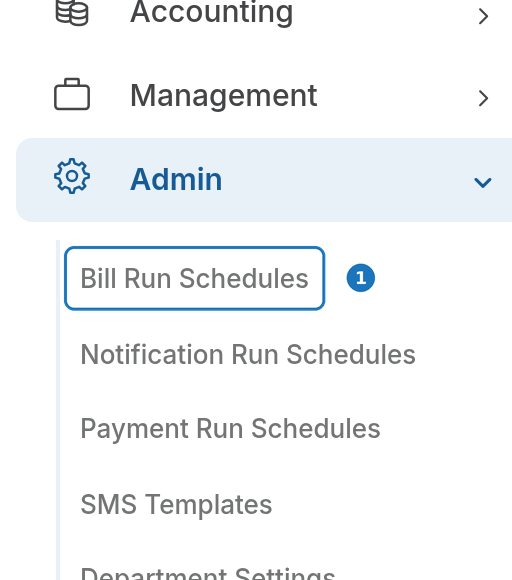
- Click Create, or open a schedule to edit it. The list shows each schedule's name, frequency, invoice types, time of day and whether it is active.
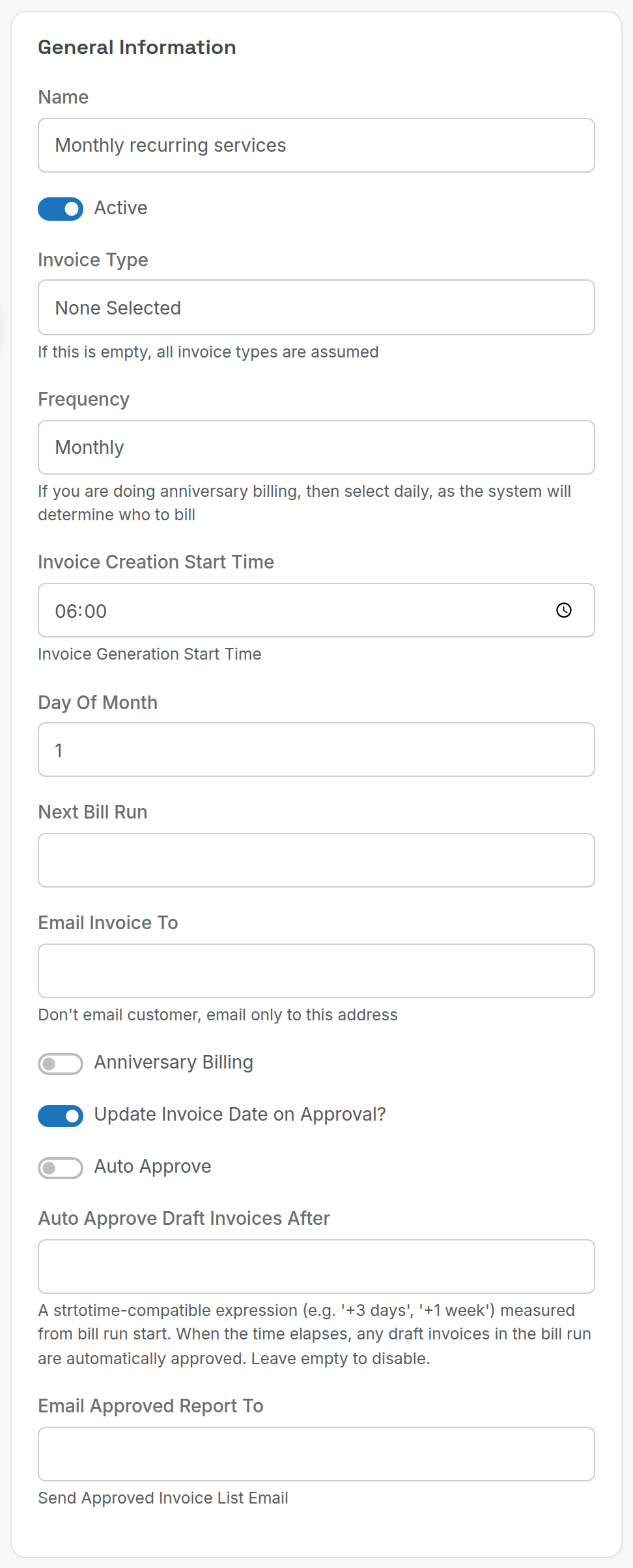
| Setting | What it does |
|---|---|
| Name | Descriptive, for example Monthly recurring services or Daily usage billing. |
| Active | Inactive schedules never run. |
| Invoice Type | Only build invoices of this type. Empty means all types. Types are defined under Admin → Lookup Tables. |
| Frequency | Monthly, Fortnightly, Daily or Yearly. See below. |
| Invoice Creation Start Time | Time of day generation starts. Early morning keeps the load off business hours. |
| Day Of Month | For monthly billing, the day invoices are built (1 to 31). |
| Next Bill Run | When the schedule fires next. Calculated by PracBill from the settings above. |
| Email Invoice To | Send every invoice from this schedule to this address instead of the customers. Use it for testing or consolidated billing. |
| Anniversary Billing | Bill each customer from their own service start dates instead of a fixed calendar date. |
| Update Invoice Date on Approval? | Stamp invoices with the approval date, so they show the date they were sent and due dates count from it. |
| Auto Approve | Approve and email invoices as soon as they are built, without review. |
| Auto Approve Draft Invoices After | A relative time such as +3 days or +1 week from the run start. When it passes, any draft invoices still unapproved are approved automatically. Empty disables it. |
| Email Approved Report To | After approval, email a CSV of every approved invoice to this address. |
¶ Frequencies
| Frequency | Use it for |
|---|---|
| Monthly | The usual case. Invoices are built once a month on Day Of Month at the start time. |
| Fortnightly | Two-weekly billing groups. |
| Daily | Usage billing that needs daily reconciliation, high-volume transactions, and anniversary billing (PracBill works out who is due each day). |
| Yearly | Annual subscriptions, contracts and maintenance fees. |
Calendar billing (the default) bills every customer for the same period, for example the 1st to the 31st, so all invoices go out together and reconciliation is simple. Anniversary billing bills each customer from the day their services started: a customer who signed up on the 15th is billed on the 15th each month. If you use it, set the frequency to Daily.
¶ Common configurations
| Schedule | Frequency | Day | Start time | Other |
|---|---|---|---|---|
| Standard monthly billing | Monthly | 1 | 06:00 | Auto Approve off, Anniversary off |
| Mid-month billing group | Monthly | 15 | 06:00 | Invoice Type set to that group's type |
| Automatic daily usage billing | Daily | 02:00 | Auto Approve on, Invoice Type Usage |
¶ What happens when a schedule runs
- PracBill checks every active schedule whose Next Bill Run has passed.
- For each one it creates a bill run and builds invoices for every eligible customer.
- Next Bill Run moves to the next cycle.
- With Auto Approve on, invoices are emailed straight away. Otherwise they wait as drafts for you to approve.
Leave Auto Approve off until you have reviewed a few runs, and test a new schedule with Email Invoice To pointed at yourself first.
¶ Bill runs
Each time a schedule fires, PracBill creates a bill run: the record of that execution, with its log and its approval state.
- In the sidebar open Management, then click Bill Runs.
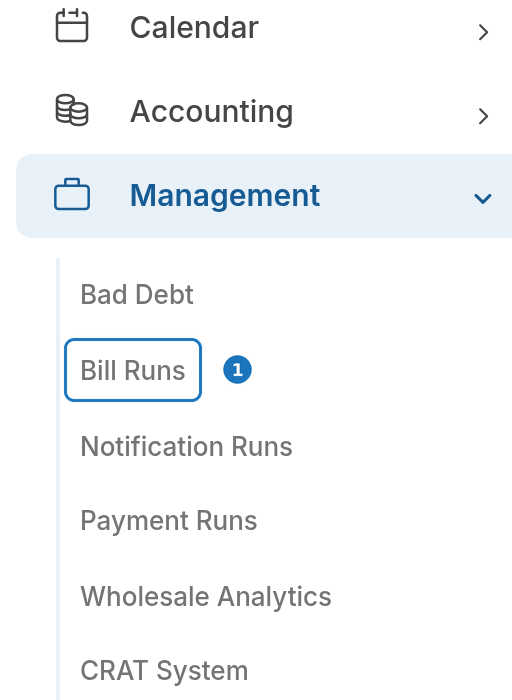
- Open a run to see its details.
The list shows the Bill Run Type (the schedule that created it), Start Date, End Date (blank while still building), Complete and Approved.
¶ Status
| Complete | Approved | Meaning |
|---|---|---|
| Pending | Pending | Invoices are still being built. Wait. |
| Complete | Pending | Every invoice is built. Review, then approve. |
| Complete | Approved | Invoices have been emailed to customers. |
Processing time depends on customer count, services per customer and usage rating. Under 100 customers takes a few minutes; 100 to 1,000 takes 15 to 30 minutes; larger runs can take an hour or more.
¶ What a bill run includes
- Active customers matching the schedule's filters, with services due for billing in the period.
- Active services matching the invoice type filter (if set) whose billing date falls in the period.
- On each invoice: recurring charges, pro-rata charges for new services, pro-rata credits for ended services (if enabled for the department), usage charges (calls, data, SMS) and tax.
¶ The bill run page
| Section | What it shows |
|---|---|
| General Information | Bill run type, start and end, complete and approved status. |
| Activity Log | When processing started, how many customers and invoices were processed, and any warnings or errors. |
| Debug Log | Customer-level and invoice-level detail for troubleshooting (administrators only). |
¶ Approve a bill run
When a run is Complete but not Approved, the page shows Approve Bill Run.
- Spot-check a sample of invoices under Sales → Invoices (filter by date) and fix any that are wrong.
- Check the totals against the health-check reports (below).
- Read the Activity Log for warnings.
- Click Approve Bill Run and confirm.
On approval PracBill marks every invoice authorised, updates invoice dates if the schedule says so, emails the invoices, and sends the approved-invoice CSV if a report address is set.
Approval emails invoices immediately and cannot be undone. Review first.
¶ Download the bill run CSV
On an approved run, click Download Billrun CSV for a file with customer details, invoice numbers, dates, totals and email delivery status. Use it for importing into accounting, reconciling payments and audit.
¶ Recommended bill run process
Adapt this to your business; it is a starting point.
| When | Do |
|---|---|
| 1 week before | Confirm every move, add and change is in PracBill. |
| 1 week before | If you bill CDRs, run the Billed Minutes report to confirm call records are arriving. |
| Day before | Add manual charges. Setup and disconnection fees are the usual ones. |
| Day before | Clear Telco → Exception Calls of unbillable CDRs. |
| Day before | Approve any pending credit notes. |
| Day of | Let the invoices generate; watch progress under Management → Bill Runs. |
| Day of | Run the health-check reports: Customer Billing Usage Analysis/Compare, Billing Period Analysis, Ancillary Charges, New Customer Details, Ended Customers Detailed Report, new and ended services, Credit Notes (Approved). |
| Day of | Review the draft invoices and spot-check PDFs. |
| Day of | Approve the bill run, which sends the invoices. |
¶ Troubleshooting
| Problem | Check |
|---|---|
| Schedule did not run | Active is on; Next Bill Run is in the future; contact support if it should have fired. |
| Run stuck on Pending | Read the log for errors. Large runs take time. Contact support if it has been unusually long. |
| Wrong customers billed | The schedule's Invoice Type filter, the services' invoice types, and customer billing cycles. |
| Invoices missing | Customer is active and not excluded; services have the right invoice type; billing cycle dates; the log for skipped customers. |
| Wrong amounts | Service fees, pro-rata settings, and that usage rating finished before the run. |
| Invoices not sent | The run is approved; customer email addresses are valid; department email settings; the email queue; spam filters. |
| Errors in the log | Usually missing customer emails or invalid service configuration. Fix, then contact support to re-run. |
| Need to resend | Resend one invoice from its page. For bulk resends, contact support. |
Related: Run your first bill run, Call rating.