The Mailchimp integration keeps one Mailchimp audience per department in sync with your PracBill customers, builds audience segments from customer data, and brings unsubscribes back into PracBill.
¶ Before you start
| Item | Notes |
|---|---|
| A Mailchimp account | Free or paid plan. |
| A Mailchimp API key | In Mailchimp click your profile icon, Account & billing, Extras, API keys, Create A Key. Copy it: it is shown once. Format xxxxxxxx-us21. |
| Read/Write access to the Mailchimp module in PracBill | See Permissions below. |
The API key gives full access to your Mailchimp account. Use a dedicated key for PracBill, never share it, and rotate it periodically.
¶ Connect to Mailchimp
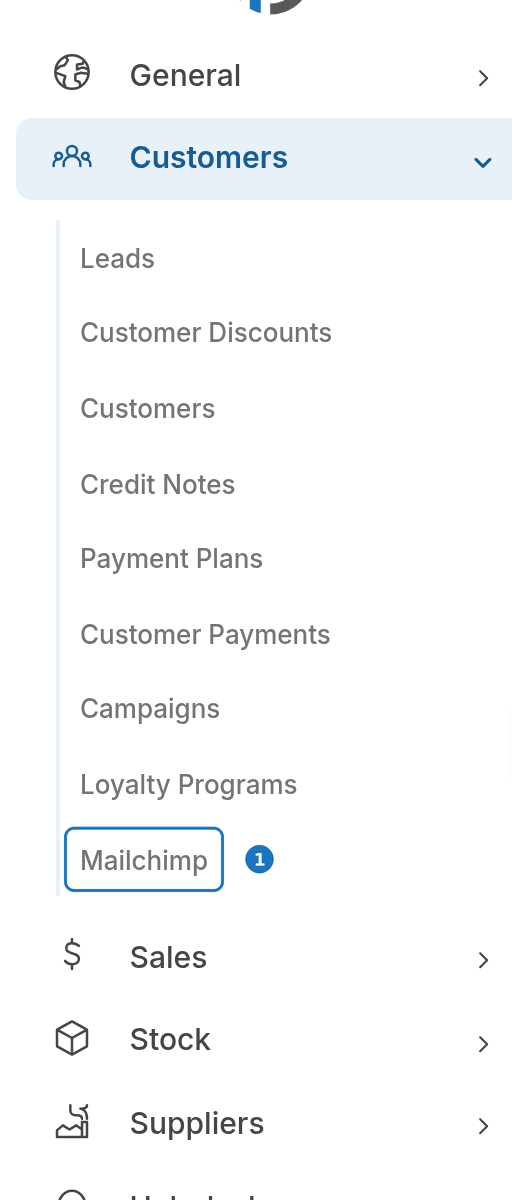
- In the sidebar open Customers, then click Mailchimp.
- Paste the key into Mailchimp API Key.
- Click Connect to Mailchimp.
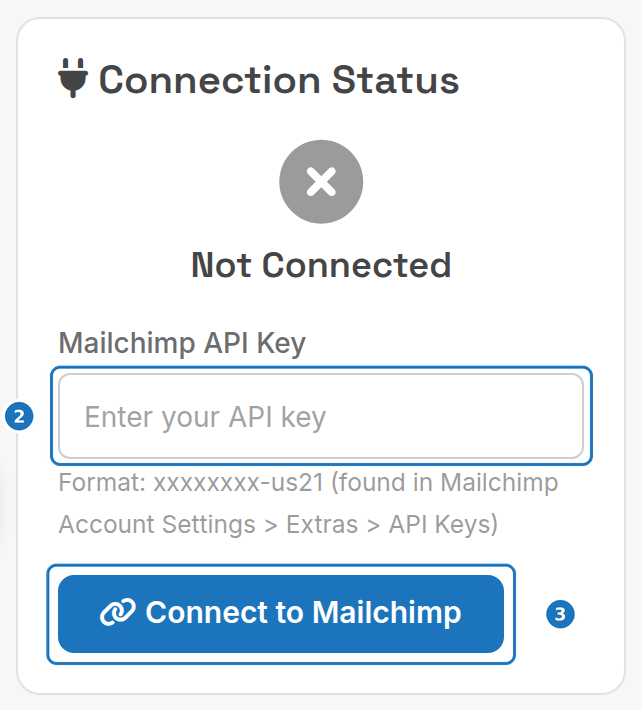
Once verified the card shows Connected, your Mailchimp server prefix (e.g. us21) and the last sync time. If it fails, check the key is correct and not revoked, the Mailchimp account is active, and you have Read/Write permission.
To disconnect, click Disconnect on the Connection Status card and confirm. This removes the link only; your Mailchimp audience and subscribers are untouched.
¶ Audience
Each department syncs to one primary audience. The Audience Overview card shows:
| Field | Meaning |
|---|---|
| Audience Name | Your Mailchimp audience |
| Member Count | Subscribers in it |
| Segments | Segments created |
| Last Synced | When customers were last synced |
If you have no audience, click Create Audience and fill in Audience Name, From Name, From Email, Company and the mailing address (City, State, Postal Code, Country, required by anti-spam law), then click Create Audience. One audience is enough; use segments for different customer groups. To bring existing Mailchimp subscribers across, use Mailchimp's own import tools: the integration only pushes from PracBill to Mailchimp.
¶ Sync customers
Customers sync automatically on the system's cron schedule (typically every few hours; ask your administrator for the exact frequency). Each sync adds new customers, updates name, email and company, and updates subscription status. Unsubscribes in Mailchimp are pulled back during the same runs and update the customer's marketing consent in PracBill.
| Button | What it does | Use it |
|---|---|---|
| Sync Now | Incremental sync of recent changes | Regular updates |
| Full Sync | Re-syncs every customer (slower on large databases) | After bulk changes, or when troubleshooting |
Check the Sync Logs afterwards for the result.
| PracBill field | Mailchimp field |
|---|---|
| Email Address | |
| Company Name | COMPANY merge field |
| First Name | FNAME merge field |
| Last Name | LNAME merge field |
| Phone | PHONE merge field |
| Address | ADDRESS merge field |
¶ Segments
A segment is a filtered group of customers inside the audience.
- On the Segments card click Create Segment.

- Enter a Segment Name (e.g. "Active Customers - Victoria").
- Add Filter Rules: pick a field, an operator and a value. Click Add Rule for more. A customer must match every rule (AND).
- Click Preview to see the matching count and sample customers, adjust, then click Save Segment.
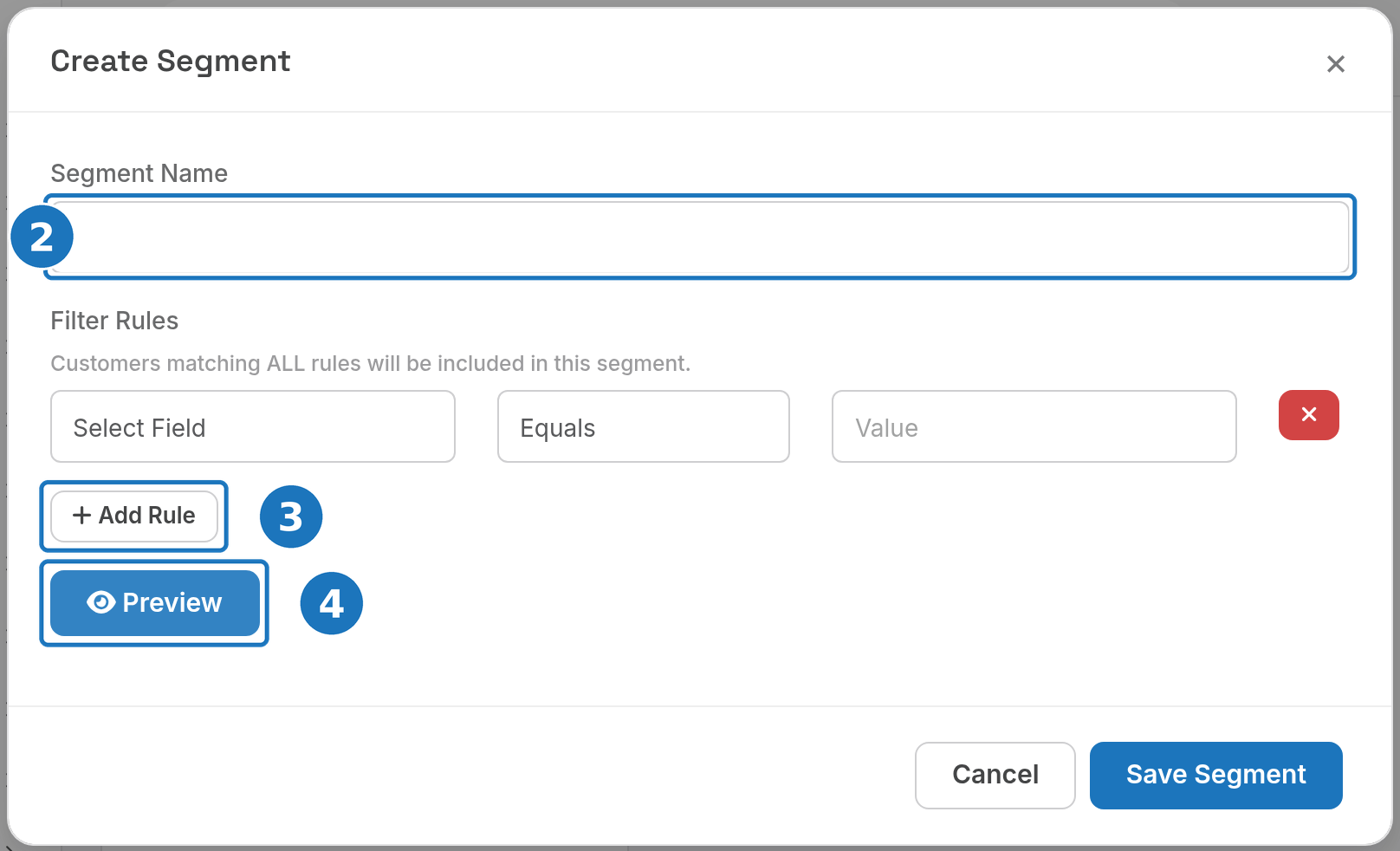
Edit a segment with its pencil icon and delete it with the trash icon (deletion is permanent). Test segments with Preview before sending a campaign. If a segment shows no customers, check spelling, try Contains instead of Equals, and preview one rule at a time.
Example, active business customers in Victoria: State Equals VIC; Customer Type Equals Business; Active/Inactive Equals 0.
¶ Filter fields
| Field | Description | Example |
|---|---|---|
| Company Name | Customer's company name | "Acme Corp" |
| Email address | Contains "@gmail.com" | |
| City | From the address | Equals "Melbourne" |
| State | State or province | Equals "VIC" |
| Postcode | Postal code | Starts with "3" |
| Country | Country code | Equals "AU" |
| Active/Inactive | Status flag | Equals "0" (active) |
| Status | Customer status field | Equals "Active" |
| Customer Type | Type classification | Equals "Business" |
Computed fields, which take a number:
| Field | Description | Example |
|---|---|---|
| Created in Last N Days | Customers created recently | 30 |
| Has Invoice in Last N Days | Customers invoiced recently | 90 |
| Has Invoice in Last N Months | Customers invoiced in the last N months | 6 |
| Balance Greater Than | Customers owing more than the amount | 100 |
¶ Operators
| Operator | Meaning | Needs a value |
|---|---|---|
| Equals / Does Not Equal | Exact match, or excludes it | Yes |
| Contains / Does Not Contain | Partial text match, or excludes it | Yes |
| Greater Than / Less Than | Numeric comparison | Yes |
| Is Empty / Is Not Empty | Field has no value, or has one | No |
¶ Sync logs
The Sync Logs card lists every sync: Date, Direction (Push to Mailchimp or Pull from Mailchimp), Type (Incremental or Full), Status and Message. Click Refresh to reload.
| Status | Meaning |
|---|---|
| Success | Completed without errors |
| Error | Failed; the message says why |
| Skipped | Nothing to sync |
¶ Troubleshooting
| Error | Cause | Fix |
|---|---|---|
| Invalid API key | Key expired or revoked | Create a new key in Mailchimp and reconnect |
| Rate limit exceeded | Too many API requests | Wait and retry |
| Invalid email | Customer email is malformed | Fix the email on the customer |
| Compliance state | The address unsubscribed earlier | Cannot be re-added without the person's consent |
Still stuck? Check the logs, confirm the key is valid and you have the right permission, then contact your administrator or PracBill support. Mailchimp's API reference is at https://mailchimp.com/developer/.
¶ Permissions
| Permission | Allows |
|---|---|
| Read | View connection status, audience, segments and logs |
| Read/Write | Everything above plus connect or disconnect, create, edit and delete segments, and trigger syncs |
Ask your administrator for access to the Mailchimp module.
Related: Integrations, Create a customer.